
User guide
Every page of the MelodyBridge web UI.
The home page has two faces. A fresh install gets the intro: a live checklist with the three steps in order (add a playlist, download the music, publish it). Each step links to the page where the work happens and checks off by itself once the database shows the result. Skip intro trades the checklist for the dashboard; finishing all three steps does the same automatically. The intro never comes back once dismissed.
Dashboard
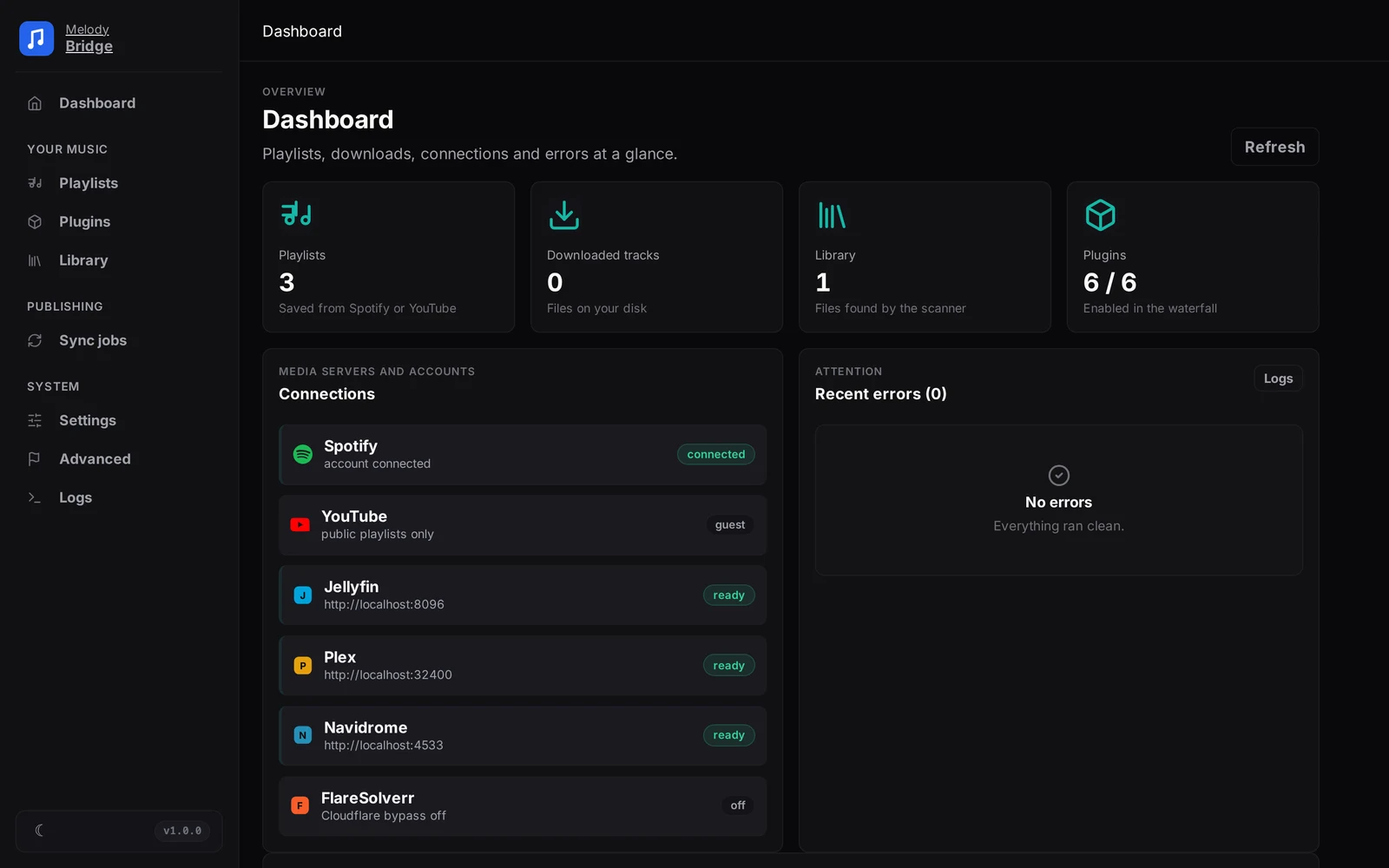
The four stat cards show the playlists, downloaded tracks, library files and enabled plugins. Below them:
- Connections lists Spotify, YouTube, Jellyfin, Plex, Navidrome and FlareSolverr with their current state
- Recent errors shows the latest failures with a link to the Logs page
- Recent sync runs lists the last jobs with their result
- The playlist cards show each playlist with its download progress (5/10, complete)
Everything refreshes every few seconds; the Refresh button forces it immediately.
Playlists
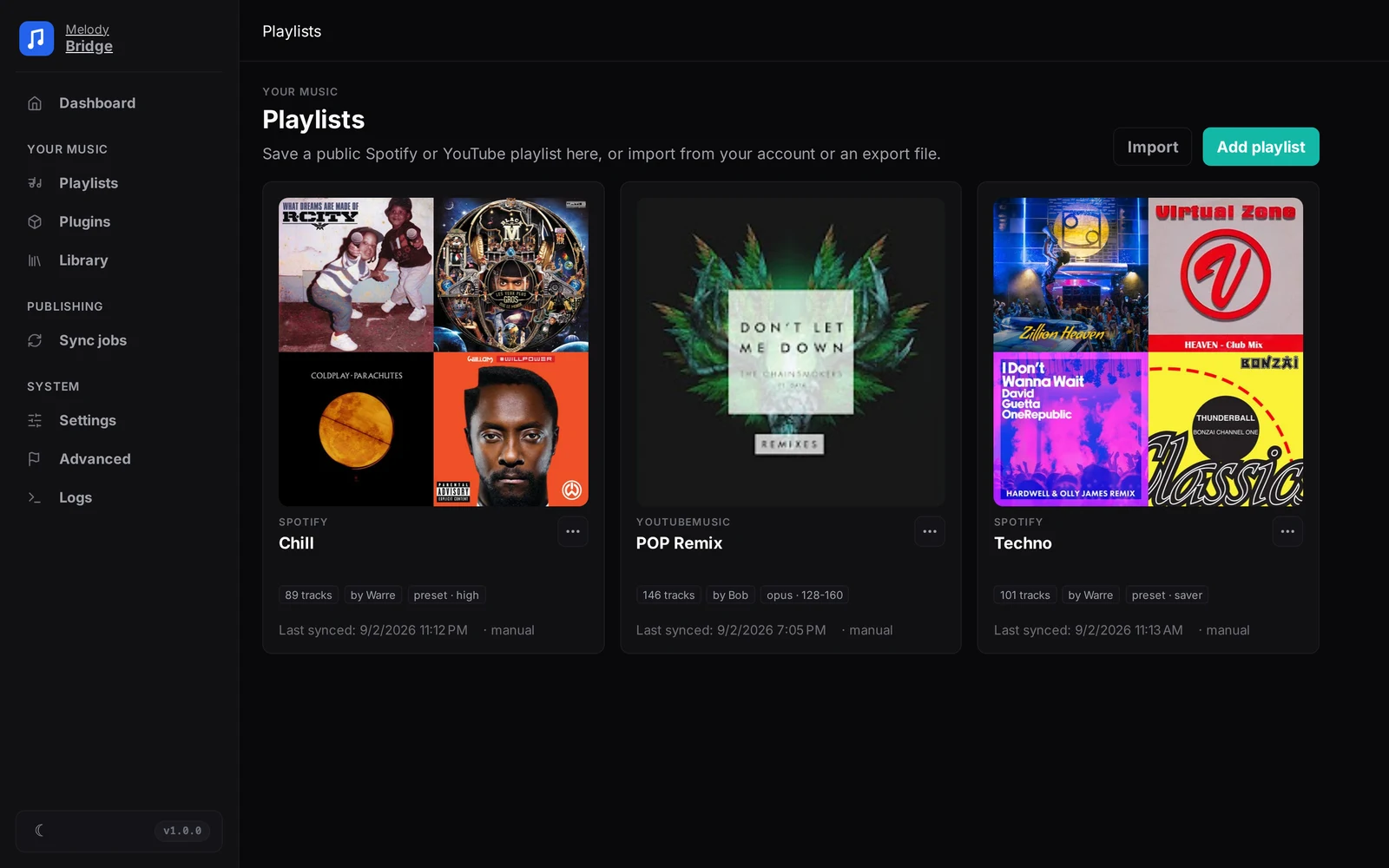
The Playlists page holds your saved playlists.
- Add playlist: paste a public Spotify or YouTube playlist link. MelodyBridge fetches the track list and saves it locally.
- Import: opens the import panel with three routes.
- From your account: import the playlists of a connected Spotify or YouTube account, including private ones and liked songs. Needs Spotify Premium (Spotify requires it from developer-app owners).
- Exportify CSV: export your liked songs (or any playlist) at exportify.net and upload the CSV here. Recommended without Premium: works with a free account.
- Spotify data export: request Download your data at spotify.com/account/privacy and upload
YourLibrary.json(liked songs) orPlaylist1.json(all playlists). Always manual, never automatic: Spotify emails the package after up to a few days.
Re-uploading the same file refreshes instead of duplicating.
Each playlist card shows the cover, the track count and when it last synced. Open a card to reach the playlist details page.
Playlist details
The details page has two halves. The left panel configures the playlist:
- Name and download folder
- Target quality: one of the shared presets (Space Saver, High Quality, Lossless, No filter) or advanced filters (container plus a bitrate range, for example
192-320) - Archive copy: an optional second file for every download, with its own folder and format
- Auto-sync schedule: Manual, Hourly, Daily, Weekly, Monthly or a custom cron expression, the same options the sync jobs and library folders use
- Sync mode: Additive keeps removed tracks as history, Mirror removes tracks deleted from the source
Every change saves itself. Text fields wait half a second after your last keystroke, dropdowns save at once, and a small pill next to the heading narrates the save: Saving, Saved, or Failed to save. A failed save rolls the fields back to the last stored values, so a database hiccup never leaves the form lying about what is persisted.
Archive copy
The Archive copy group gives every download a second home. Pick the archive folder and the archive format: Auto copies the downloaded file as-is, while Opus, FLAC, MP3 and AAC convert it locally. Leave the folder empty to use the default archive path from the Paths tab in Settings; when both are empty, no archive copy is made.
The track is fetched from the source once. The archive copy is produced from the downloaded file, so the second file never costs a second download. Converting needs ffmpeg on the host; when it is missing the download still succeeds and the track gets a warning. Tracks that got one show archive: <filename> under their filename when the file column is on (Advanced page).
The right panel shows the track status (total and downloaded) and live progress while a download runs. Under Tracks you find the full track list with a filter box; each track shows its state, the real quality of its file (bitrate, sample rate, container) and, when the quality check flagged it, a warning next to the entry. Export CSV at the top downloads the track list as a spreadsheet-friendly CSV file.
At the top:
- Refresh pulls the playlist from the source again and applies the sync mode
- Download missing lets the waterfall fetch every track that is not present yet
The CSV button on each playlist card on the Playlists page exports the same list without opening the details page.
Plugins
The Plugins page configures the plugin waterfall and shows live progress. Plugins search for and download the music: with the No filter quality each track is tried through the enabled plugins in the order below, and the first one that returns a file wins. The order set here applies only to No filter: every preset and every advanced filter picks its own order, skipping plugins that cannot serve the requested quality and trying the rest by fit (Space Saver prefers small-file sources, Lossless prefers the lossless-capable ones).
- Move plugins up or down with the arrows, toggle them with the switch; plugins with settings show an expandable Settings panel whose values are remembered per plugin
- A plugin marked unavailable (missing binary or service down) is skipped automatically; the pill next to it shows the current state
- Live downloads at the top shows each running playlist download with its progress, the track it is on, and buttons to pause, resume or cancel it. Several tracks of the same playlist download in parallel; the number of simultaneous downloads is set on the Advanced page (1 to 8, default 2)
- Every completed file gets an integrity check: the duration must parse and match the playlist metadata. A corrupt file is deleted, marked failed with the reason, and retried on the next run
Lucida needs a Cloudflare solver
See Lucida and FlareSolverr. Without a solver Lucida stays out of the waterfall and the other plugins take over.
Monochrome and DoubleDouble are community rip mirrors: Monochrome searches TIDAL and falls back between its instances automatically, DoubleDouble handles direct track URLs only (its search is captcha-gated, so it never finds tracks by name).
Sync jobs
A sync job turns a saved playlist or a local folder into an M3U file or a playlist on Jellyfin, Plex or Navidrome. The New sync job wizard has five steps:
- Job name and source. The source is a saved playlist or, with Local folder, a single scan folder from the Library page
- Search locations: a checkbox list of your scan folders, all checked by default. Leave them all checked to use every folder
- Output type: M3U File, Jellyfin, Plex or Navidrome. M3U needs the output path. The servers each take their own connection fields: Jellyfin needs the server URL and API key, plus a Test connection button that checks the server and lists its users for you to pick one. Plex needs the server URL and an X-Plex-Token (the token-holder is the only user, so there is no user picker). Navidrome needs the server URL, a username and a password. The connection values are stored per job, so two jobs can point at two different servers. The schedule is manual, hourly, daily, weekly, monthly or cron; cron takes a five-field expression like
0 3 * * *(03:00 nightly) - Path and extension remap rules: add as many as you need, each with a from and a to value. Only needed when your music player sees files under a different path than MelodyBridge, for example inside a Docker container: the paths must match what the server sees, such as its container mount
- Review and create
Each job card shows the last run status and summary, the schedule, and buttons to run it now, view its log, edit it or delete it. Edit reopens the same wizard with the job's current values; saving updates the job instead of creating a new one.
Reading the run summary
"Synced 20/50 tracks, 30 without a local file" counts the whole playlist: 50 tracks are in it and 20 of them had a file to publish. The Log view breaks those 30 down per track, so you can see exactly which files are missing or were not found on the media server.
Library
The Library page covers your own music collection: the folders you told MelodyBridge to scan. Playlist downloads live on their playlist pages and never mix into this list: the Library page shows your folders and how matching works, not a track list.
- Add location: point MelodyBridge at a folder with music files
- A new playlist registers its download folder as a scan location automatically
- Each location can scan on a fixed interval in hours or manual only
- Run scan starts a scan of all locations immediately
The scanner reads tags, not filenames, so a renamed file is still recognized. Downloaded tracks are matched against the library: a track you already own is not downloaded again. The scan history below the locations shows what each run found, added and updated.
Every downloaded file carries a MELODY_ID tag with a stable id derived from its source: a Spotify track always gets the same id, a YouTube video always gets the same id, a CSV import row gets a hash of its artist, title and duration. The tag, not the database, is the source of truth.
Recover after wiping the database
Because the ids are deterministic, the database is a cache you can rebuild. Delete the database file, re-add the same playlists, and every track is matched to the file that already exists on disk by its MELODY_ID tag: nothing is downloaded again. Run a Library scan after re-adding so the files are indexed, then open each playlist and the existing files link up automatically.
Settings
The Settings page collects everything that is not per-playlist, in six tabs.
- Accounts: connect Spotify and YouTube. Both only ask for read access, see Accounts and OAuth
- Media servers: named connection profiles for Jellyfin, Plex and Navidrome that several sync jobs can share. Add and edit profiles in one place, each with a Test button and a Use as app default switch
- Paths: music path and playlist output folder, as the server sees them (inside Docker:
/musicand/app/playlists), plus the default archive path and format for archive copies - Quality: the default audio quality for new playlists (each playlist can override it on its own page) and the spectrum check mode. Quality is one dropdown with named presets: Space Saver (up to 160 kbps, small files), High Quality (up to 320 kbps, no lossless sizes), Lossless (FLAC when a source has it, otherwise the best lossy file) and No filter (takes whatever a source gives, junk rips included). Advanced filters… opens a container, floor and ceiling selector for exact control.
- Network: the FlareSolverr URL for the Lucida plugin with a Test connection button,
offdisables Lucida; an optional Spotify web cookie for fallback scraping (stored here, not in an environment variable); plus a log export that downloads the most recent 1000 entries as a plain text file - About: app version and update check
Which preset
Space Saver fits massive playlists and phones: files stay small and sound fine. High Quality is the safe default: everything good, nothing huge. Lossless is for a home media server with disk to spare; when no source has a lossless copy it falls back to the best lossy file. No filter is the anything-goes option: whatever a source serves lands in the library, including inflated rips. The advanced filters take exact control: a container, a bitrate floor and a ceiling. The primary download is never re-encoded, so strict filters can make a download fail when the sources cannot provide that exact format. A failed track says so in its row: sources had files outside your quality filters. Archive copies are the exception: with a format other than Auto they are transcoded locally from the downloaded file.
Settings are stored in the database and apply immediately after Save settings, no restart needed.
Advanced Advanced
The Advanced page holds the knobs most people never need.
- Downloads: the maximum number of simultaneous track downloads. More finishes large playlists faster but hits every source harder. When playlists and library folders refresh is not a knob here: each playlist and folder carries its own schedule on its own page
- Display: show the file column on playlist tracks, which reveals the exact filename behind each track. Useful when hunting inflated downloads
- Database activity: show database activity in the logs. Off by default, it hides the constant Executed DbCommand lines EF Core writes to the Logs page; warnings and errors stay visible either way. Turn it on only while debugging a database problem
- Library maintenance: the Recompute audio facts button refills the bitrate, sample rate and size of older downloads that predate the probing, and flags files missing on disk for a re-download
Logs
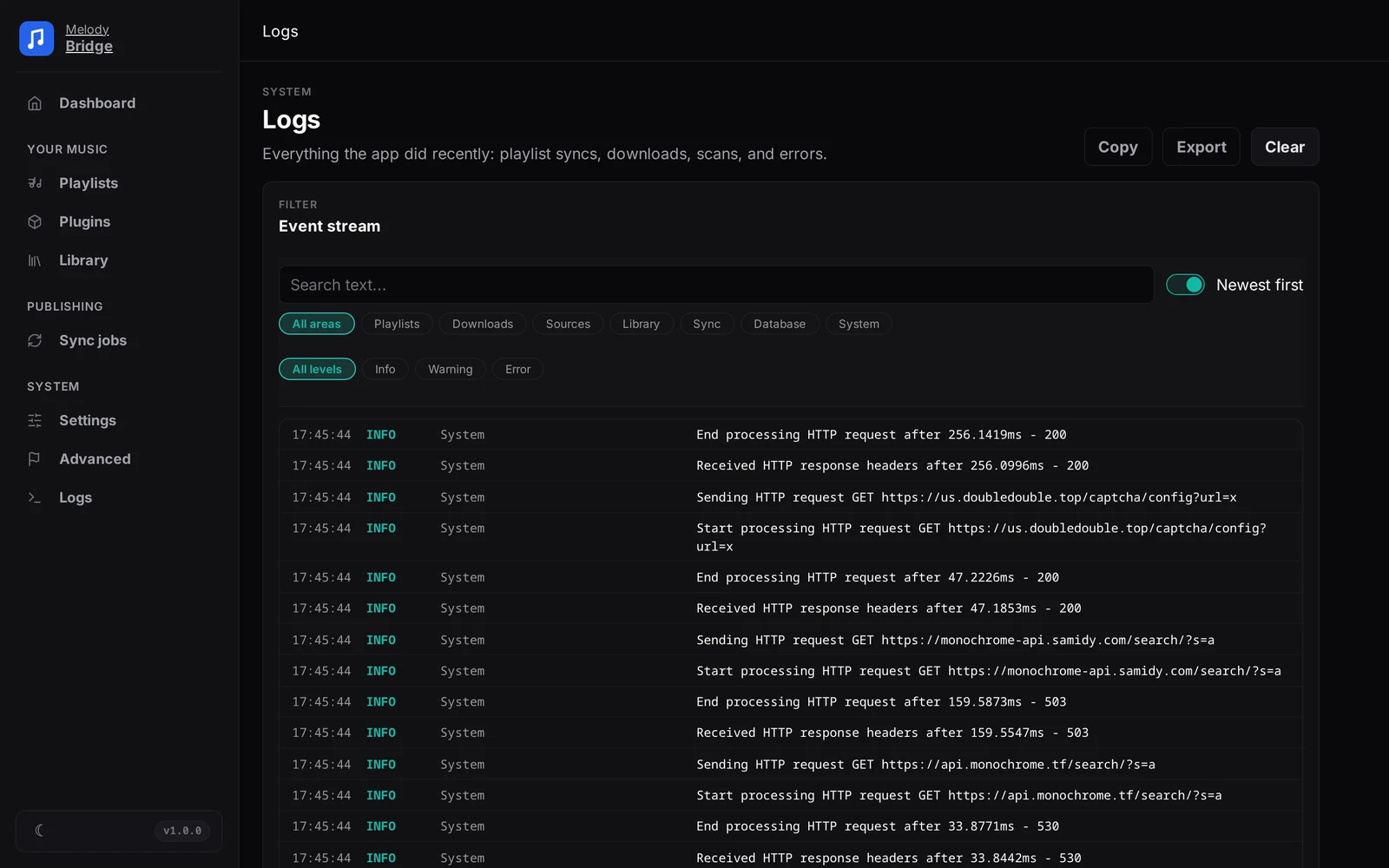
The Logs page shows what the app did recently: playlist syncs, downloads, scans and errors.
- When errors exist, a banner at the top lists them; Show only problems filters the stream down to the errors
- The event stream below shows every entry with its time, level, category and message; filter by area or level with the chips (Error includes critical) or search with the text box, which also matches friendly area names
- Copy puts the filtered entries on the clipboard, Export downloads them as a file, Clear empties the log
When a download fails
The entry holds the plugin, the track and the reason: rate limited, not found, or rejected by the quality gate. That is the first place to look when a track did not arrive.