
How it works
MelodyBridge does three things: it fetches playlists, it downloads and verifies the tracks, and it publishes playlists to your players. This page explains what happens under the hood, because the knobs make more sense once you know the moving parts.
From link to library
The short version of the pipeline:
- You save a playlist. MelodyBridge fetches the track list once and stores it in a local SQLite database.
- Download missing sends each pending track down the plugin waterfall. The first source that returns a file which passes your quality bar wins.
- Every produced file is checked, tagged with a source-derived ID, and written to the playlist's download folder.
- Library scans and the reconciler later match files back to playlist rows by that ID tag, so the database never has to be right, only helpful.
Playlists are snapshots
When you add a public Spotify, YouTube, Deezer, SoundCloud or ListenBrainz link, MelodyBridge reads the playlist (page scraping or the public API for Spotify, yt-dlp for YouTube and SoundCloud, the public Deezer and ListenBrainz APIs for those) and saves the whole track list locally. No API key or account is needed for public playlists. You also get the cover art, the track count and each track's duration.
From then on the local snapshot is what the app works from. Pressing Refresh, or letting the Auto-sync schedule fire, fetches the source again and merges the result. New tracks show up as pending; disappeared tracks follow the Sync mode you picked:
- Additive keeps removed tracks as history. Nothing vanishes from your library.
- Mirror removes tracks that are gone from the source, so the published playlist matches the source exactly.
Two things worth knowing:
- Auto-sync refreshes the track list. Downloads stay manual unless the playlist opts in with Download new tracks after auto-sync: after a successful refresh, MelodyBridge starts a download run as soon as there is pending work, new tracks and earlier failures alike. Failed tracks are retried every interval. The toggle is off by default and hidden for file imports, which have no live source. Sync jobs publish whatever files exist at their run time.
- If a fetch comes back incomplete, the playlist card shows a partial sync warning and the next refresh fills the gaps.
Private playlists, collaborative playlists and your liked songs need an account connection or a file import. See Accounts and imports.
The waterfall
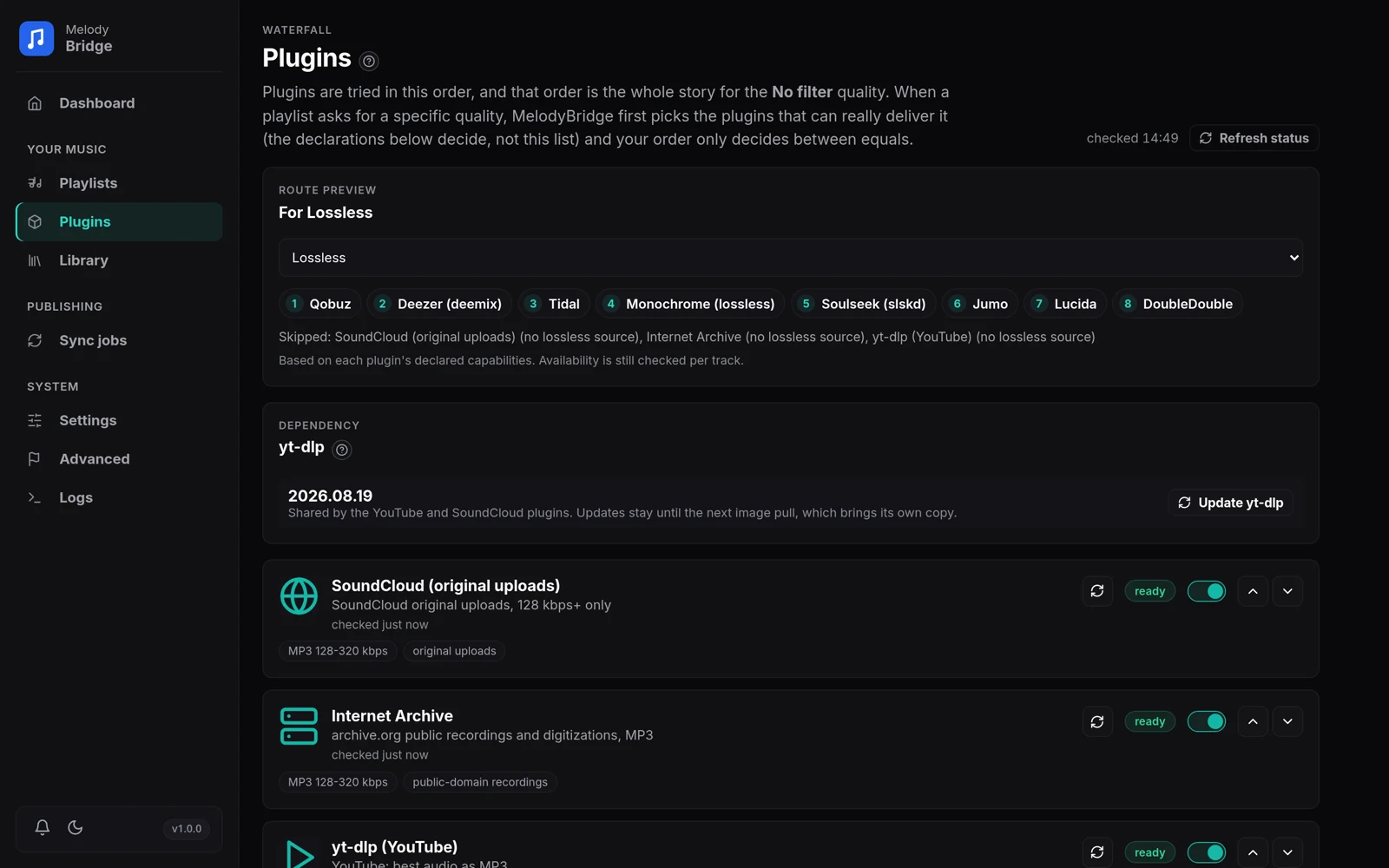
Every download runs through a waterfall of plugins. MelodyBridge does not throw every plugin at every track: it routes first, then runs the survivors in order.
Routing
Each plugin declares its honest capabilities: the container formats it can produce, which bitrate levels those arrive in, whether lossless content is really in reach, and whether the plugin can be asked for a level or merely hands back whatever the source serves. Two things use that list:
- Format and bitrate filters. A plugin that cannot serve your requested quality is skipped before any network call. When every plugin is out, the track fails with a message like your quality filters excluded every plugin, which is your cue to loosen the filter or enable more plugins.
- Run order. With No filter your own order on the Plugins page is the order. When you ask for a specific quality, the plugins that can actually be asked for it run first, and your order decides between plugins of the same kind. A Lossless request therefore starts at the lossless producers and an mp3 request at the plugins that can hand out mp3, without any per-quality configuration.
Strict quality
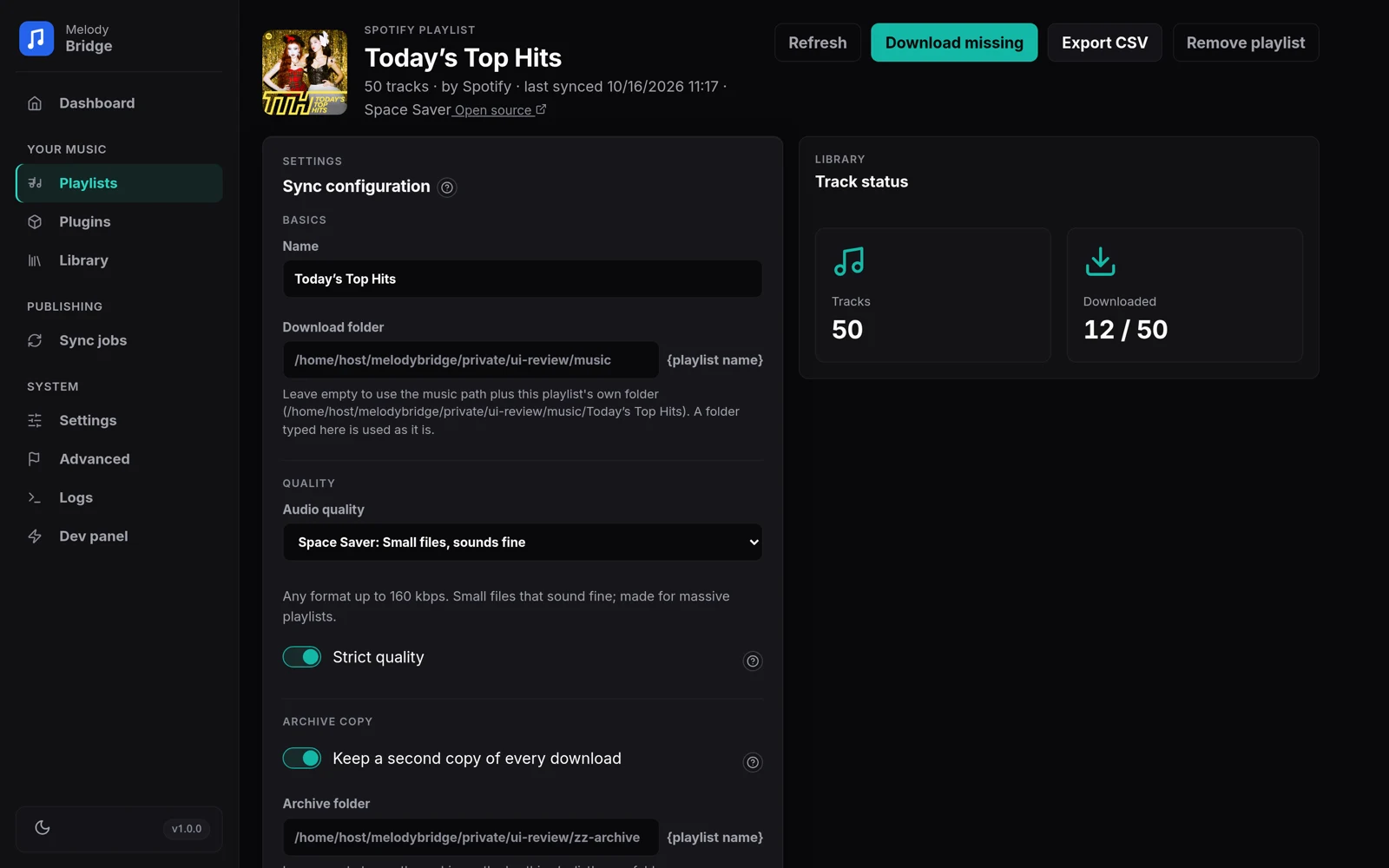
Every playlist has a Strict quality switch. On, which is the default, only the quality you asked for may be delivered; when nothing can serve it, the track fails with the reason. Off, the download steps down through the quality levels the enabled plugins themselves declare, best first, until one delivers: a Lossless request lands on the best lossy file, and a request with a bitrate floor drops its floor instead of failing. The follow-up switch Allow container changes decides whether a fallback step may leave the chosen container; turn it off when the container itself is the point.
Plugins that are missing their tool or reporting a dead service mark themselves unavailable and get skipped automatically. The pill on their card shows the current state, and Refresh status re-checks them.
MelodyBridge also watches how each plugin behaves over its recent attempts. A plugin whose last three attempts all failed is skipped for five minutes instead of costing every track a timeout, and a plugin that mostly fails lately runs after the healthy ones. Two time budgets keep a run moving: one plugin may spend at most four minutes on a single track, and a whole track gets twenty minutes across every plugin and quality step. Both are adjustable on the Advanced page.
The plugins
| Plugin | What it fetches |
|---|---|
| Lucida | High quality rips from lucida.to (Tidal, Deezer, Amazon Music, Qobuz). Needs a Cloudflare solver, see Lucida and FlareSolverr |
| Monochrome | Lossless FLAC from the official Monochrome API, no account needed |
| Soulseek | Lossless and high-bitrate files from Soulseek peers, through your own slskd instance. See Soulseek and slskd |
| Qobuz | Lossless and hi-res files from your own Qobuz subscription, through qobuz-dlp. See Qobuz and qobuz-dlp |
| Deezer | MP3 or FLAC from your own Deezer account, through the deemix CLI. See Deezer and deemix |
| Tidal | Lossless and hi-res files from your own Tidal session, through tiddl. See Tidal and tiddl |
| DoubleDouble | Retired: doubledouble.top now demands a captcha on every submission, so the plugin reports itself unavailable. It stays in the list (last) so an existing install can turn it off |
| Jumo | Qobuz rips through the community front-end jumo-dl.pages.dev, no account needed. See Jumo (Qobuz rips) |
| SoundCloud | Original uploads by the artist, usually 128 kbps or better |
| Internet Archive | Public recordings and digitizations from archive.org |
| yt-dlp | YouTube: audio-only best stream, top-5 ranked by match and duration |
Finding the right recording
Matching uses more than the title. Search results are ranked on title and artist similarity with a penalty for duration drift, so a live version or a radio edit loses against the studio track. Candidates that carry an unrequested modifier (karaoke, cover, remix, live cut, review and the like) are dropped before they can win, a version marker the playlist asks for must be present in the hit ("(VIP)", "(Acoustic)"), and a hit that is not a plausible version of the track at all is a miss: it is never downloaded just because it was the best of five. The playlist's own duration is re-checked against the hit before any bytes are downloaded.
The strongest signal is the ISRC, the recording's international audio fingerprint. Spotify accounts provide it for their tracks, liked songs and playlists alike; for everything else MelodyBridge looks it up through Deezer's public search and only accepts a confident, duration-plausible match. Sources that index ISRCs use it wherever they can: Qobuz, Deezer, Jumo and Lucida's services search by the code itself, and Qobuz, Deezer, Jumo, Monochrome and Tidal accept a hit carrying the exact code as that recording, even when its title is spelled differently. YouTube and SoundCloud do not index ISRCs at all, so for those the ranking rules above are the whole gate.
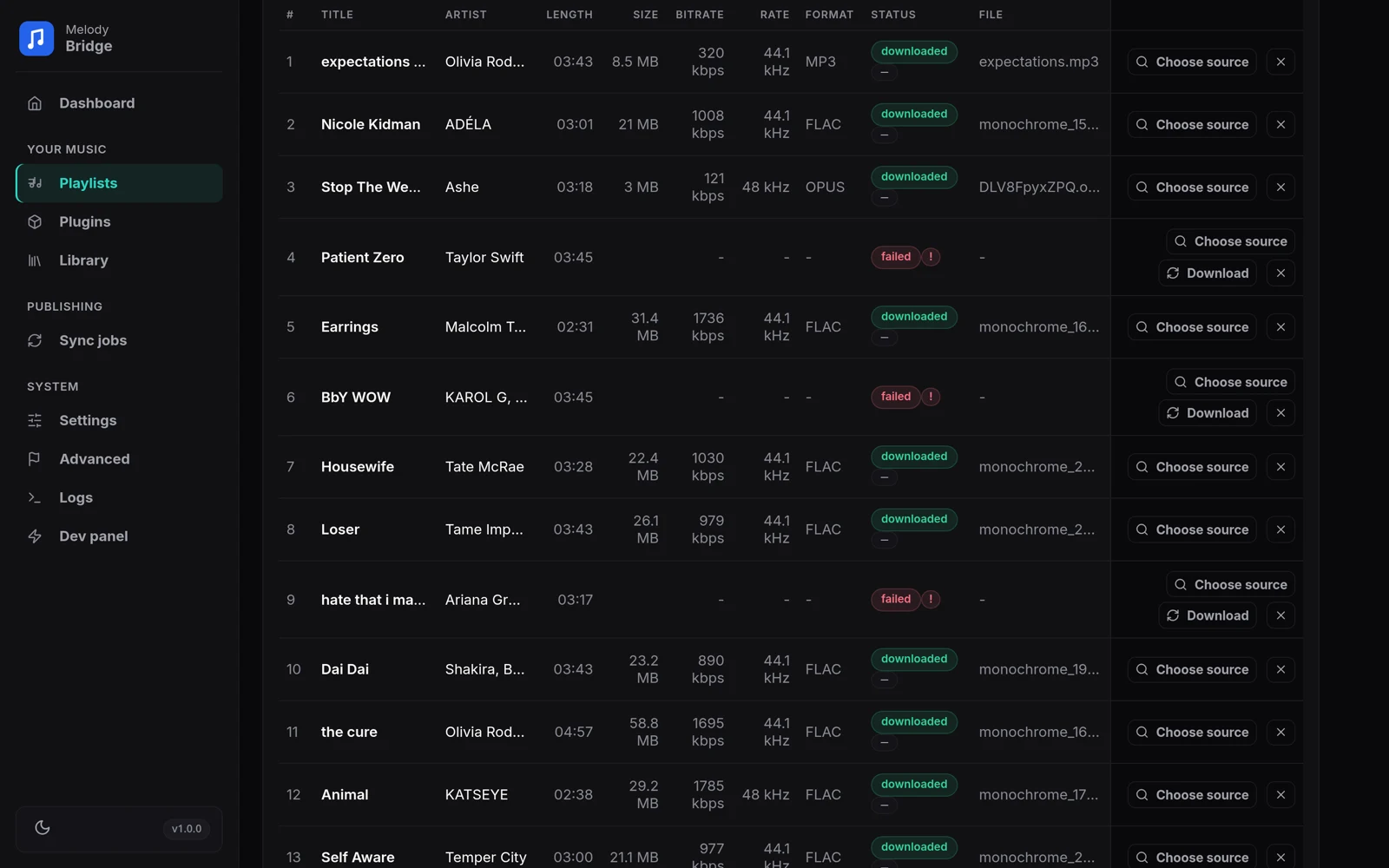
When the automatic match is wrong or finds nothing, every track row has a Choose source button: the manual picker lists what every enabled plugin found, including the hits the automatic search refused, each with its plugin name and a likely/unsure pill. The track's own length sits at the top and every hit shows its length with the difference, so a preview or a longer edit stands out. The plugins search at the same time, results appear as each one answers instead of waiting for the slowest, and a pick shows a progress bar and a running timer while it downloads. Picking one downloads it through the normal pipeline, files and archive copy included, and replaces whatever the row held before; a source that fails stays in the list with the reason. Automatic matching cannot be perfect on sources that carry no ISRC and no trustworthy artist name; the picker is the honest way out of that.
Cover art and lyrics
A downloaded file gets what the source really knows. Spotify accounts (liked songs included), Deezer playlists and ListenBrainz playlists carry a cover URL and the album, so the artwork is embedded and the album tag written unless the plugin already wrote its own. The album tag is what a media server groups on: files without one fall back to their folder, which is why a playlist full of YouTube rips shows up as one album. Lyrics come from LRCLIB, one lookup per track, stored on the row and written as the lyrics tag. All of it is best effort: a dead cover URL or a missed lyric leaves the file exactly as it was, and none of it can fail a download. The Advanced page can fill the same fields on files that were downloaded before this existed.
Quality checks
The band is a filter, not a suggestion
When you pick a quality preset (or an advanced container and bitrate band), MelodyBridge enforces it twice: first against the bitrate each search hit reports, and again by probing the real file after download. A file outside the band is rejected and deleted, and the waterfall moves on. Unknown bitrates pass the first check and get decided by the measurement.
MelodyBridge does not re-encode the primary download. If no source can serve the container you asked for, the track fails with a message saying so; that is the filter working, not a bug. Archive copies are the one exception, and those are converted after the fact from the file you already have.
A hand-picked source in Choose source is the one place the filter steps aside: you saw the hit and chose it. The picker shows what each candidate really is before you click (see the track list), and MelodyBridge never turns a lossy source into a lossless file. When the plugin cannot deliver your target quality, the pick is saved at its source quality and the row says "saved as-is"; when the plugin can serve your target container, the pick is converted to it. The row says which one will happen.
Real files only
A track first has to be real audio, and only genuinely broken files are thrown away:
- The file's bytes are sniffed for a real audio signature. An HTML error page or a JSON body served with a 200 status is deleted, and the waterfall continues.
- ffprobe parses the file. A file it cannot read at all (truncated mid-frame, junk under an audio header) is deleted and the track is marked failed, so a later run retries it. A wrong length is not a broken file: see the review below.
- The measured bitrate must land inside your band. A file outside the band is rejected and deleted, and the waterfall moves on.
The duration and band are also checked against search hits before any bytes are spent, so previews and wrong edits are usually stopped earlier.
Nothing broken is left in your library. Files that are playable but doubtful take the path below instead.
The quality review
Two checks flag instead of delete. A file whose length differs from what the playlist promised, and a file whose bandwidth says the declared bitrate is inflated, both stay in the library. The track row gets a ! pill explaining the doubt and two buttons:
- Keep settles it: the file stays exactly as it is and the flag is cleared.
- Retry settles it the other way: the flagged file is deleted and downloaded again, with the provider that delivered it skipped for that attempt, so another source gets its turn. The skipped provider is only out of this one attempt; when nothing else can deliver, a later try may use it again.
A playlist with open flags shows a hint box counting them, and Needs attention in the track filter lists flagged rows next to failed ones.
The windows are configured under Settings, Quality:
| Setting | Default | What it decides |
|---|---|---|
| Length tolerance (seconds) | 30 | The absolute part of the allowed length difference |
| Length tolerance (percent) | 10 | The relative part; the larger of the two wins |
| Spectrum strictness | Balanced (two classes below) | How far the measured bandwidth may sit below the declared bitrate before a file counts as inflated |
A 5:05 version of a 5:00 track passes with the defaults; a 5:45 extended mix does not and waits for your call.
The spectrum check
Some sites hand out files that claim 320 kbps but hold far less. The spectrum check does not trust the header: it decodes a window of the audio, averages its spectrum, and looks at how the high end falls off. It only flags a file when the spectrum drops off a steep codec-style corner well below what the declared bitrate needs.
Set the mode under Settings, Quality, Spectrum check:
| Mode | What it does |
|---|---|
| Off | Trust the file |
| Fast | Analyze the first minute (the default) |
| Thorough | Analyze the whole file (the first 15 minutes of very long files) |
Spectrum strictness is the line in the sand: with the default, a 320 kbps header over 192 kbps of real bandwidth is flagged and one class below is not. An inflated file joins the quality review, so it stays on disk and you pick Keep or Retry. A gentle low end that is not a codec corner gets an advisory quality hint on the row instead, and there is nothing to decide.
Lossless containers are measured the same way. A FLAC whose audio carries a steep codec corner is flagged too, because the wrapper does not make the content lossless; the review then reads "the container is lossless, but the audio stops at ...". A genuinely lossless file, including 96 kHz sources, is never flagged: only a codec-style corner counts, not a dark mix.
It needs ffmpeg and ffprobe on the host; without either, files simply skip the check. It stays honest about what a spectrum can and cannot prove: a high end that fades out gently is music that was mixed that way, not a mislabelled rip, and Opus files stay near full band even at low bitrates, so a dark mix or an Opus file is never called inflated and never gets a quality hint. Only a steep codec corner, well below what the declared bitrate needs, counts.
Track identity
Each downloaded file carries a MELODY_ID tag. The value is derived from the source, so it is the same on every machine and in every database:
| Source | ID format |
|---|---|
| Spotify track | spotify:{trackId} |
| YouTube video | yt:{videoId} |
| Internet Archive item | ia:{identifier} |
| CSV import row | csv:{hash} of artist, title and duration |
| No platform ID | mbh:{hash} of the same fields |
The tag is written after the file passes the quality bar, and it lives where the container format keeps its comments: an ID3v2 TXXX frame for MP3, a Xiph/Vorbis comment for FLAC, Ogg and Opus, and a MELODY_ID= marker in the comment field for MP4 and the rest.
Surviving a database wipe
The database is a cache. The files on disk are the real library, and their ID tags are the index. That means you can throw the database away without losing anything:
- Stop the app (
docker compose down). - Delete the database,
./data/app/melodybridge.db(plus the-waland-shmfiles if they are there). - Start the app again and re-add the same playlists, using the same links.
- Run a Library scan, or just restart. The reconciler matches every file on disk to its playlist row by
MELODY_ID, and nothing downloads a second time.
Download folders register themselves as scan locations, and the reconciler runs at startup and after every scan, so a fresh database over an existing music folder heals by itself. Playlists imported from a CSV file or your liked songs need the import repeated before their rows exist again.
Playlist folders
Every playlist downloads into its own folder named after it, under the music path: /music/My Summer Hits/..., liked songs included (/music/Liked songs (Spotify)/...). An archive copy mirrors that layout under the archive path, so two libraries never mix one playlist's files with another's. That separation is what makes the duplicate handling below possible: a linked file lands in the playlist's own folder, never somewhere shared.
Files that were downloaded before their playlist had a folder still sit loose under the music path or archive path. On startup MelodyBridge moves those into the playlist's folder and updates its bookkeeping, so the old layout heals by itself. A file that several playlists share (from the old shared-folder layout) is moved once and every playlist keeps pointing at it. Changing the music path or archive path under Settings, Default paths does the same on save: the tracked files, the playlist folders and the scan locations follow the new root. Files outside those paths, and destinations that already hold a file, are left alone; empty folders the move leaves behind are removed, a folder with anything else in it stays.
Type a folder on the playlist page to override the location. A folder you type is used as it is; leave the field empty and the default music path plus the playlist folder applies. A grey {playlist} suffix next to the field shows when the playlist folder is what gets appended, and Sort downloads into a folder per playlist under Settings turns the per-playlist folders off for a flat library.
Duplicate tracks Optional
The same track often sits in more than one playlist. Downloading identical bytes again would waste disk space, so before a download MelodyBridge checks whether the same MELODY_ID is already sitting in another playlist folder:
- Same quality. The existing file gets a hard link into this playlist's folder: a second name for the same bytes, costing zero extra space. Both folders stay normal folders with normal files in them.
- Different quality. Nothing is guessed. The track pauses as needs review with two buttons: Download new fetches a fresh file in this playlist's quality, Hardlink existing asks for confirmation first and then accepts the other file as-is. The dialog names the quality difference and explains that both playlists will share the same bytes.
- Different drive. A hard link only works within one filesystem. When the folders sit on different drives the track simply downloads the normal way; a copy pretending to be a link is never used.
Removing a track from one playlist removes only that playlist's name for it. The bytes stay as long as any other playlist still links them. The whole feature can be turned off with Hardlink duplicate tracks across playlists on the Advanced page. A linked track reuses the original's archive copy too: when the other playlist already has one, its bytes are linked into this playlist's archive folder, so both playlists get a copy without a second download or a second transcode.
Linking does not wait for a download. When you add or refresh a playlist, tracks the library already holds are linked right away, so a new playlist owns its own file names from the first moment. The same pass runs when a library scan finds files for a playlist that had none. A quality difference never pauses anything on its own: it only asks for your decision when a download would otherwise put a different version next to the existing one.
Archive copies Optional
Archive copies give every download a second home. The use case is simple: keep a FLAC archive for the long term, and let your media server stream smaller Opus or AAC files. Or the other way around, your call.
Set an archive folder and format on the playlist page (Archive copy), or set the defaults under Settings, Default paths. Each playlist has its own folder under the archive path (/archive/My Summer Hits/...), and the playlist's format select says what the app default currently does. Archive folders are never mistaken for a track's main file: a library scan skips them and a scan that finds one already pointed at by a row clears that pointer. Downloading a track again replaces its old file and its old archive copy, so a retry cannot leave orphaned bytes behind. The switch on the playlist page turns the copy off for that playlist: the folder and format fields disappear, and no copy is made, even when an app-wide archive path is set.
| Format | Result |
|---|---|
| App default | Whatever the archive format under Settings says |
| Auto | A plain copy of the downloaded file |
| Opus | 128 kbps, small and efficient |
| FLAC | Lossless, level 5 compression |
| MP3 | 256 kbps, widely compatible |
| AAC | 192 kbps, lands as .m4a |
The track is fetched from the source once. The archive copy is produced locally from that file with ffmpeg, so a second library never costs a second internet download. If ffmpeg is missing, the download still succeeds and the track gets an archive copy failed warning instead. The file column on the playlist tracks (enable it on the Advanced page) shows an archive: <filename> chip on tracks that have an archive copy, and a small check next to the status column tells you at a glance whether the copy exists, is missing from disk, or was never made.