
Settings and options
Everything you can configure in MelodyBridge, gathered in one place. If you are installing for the first time, start at Quick start; this page is the reference.
Settings
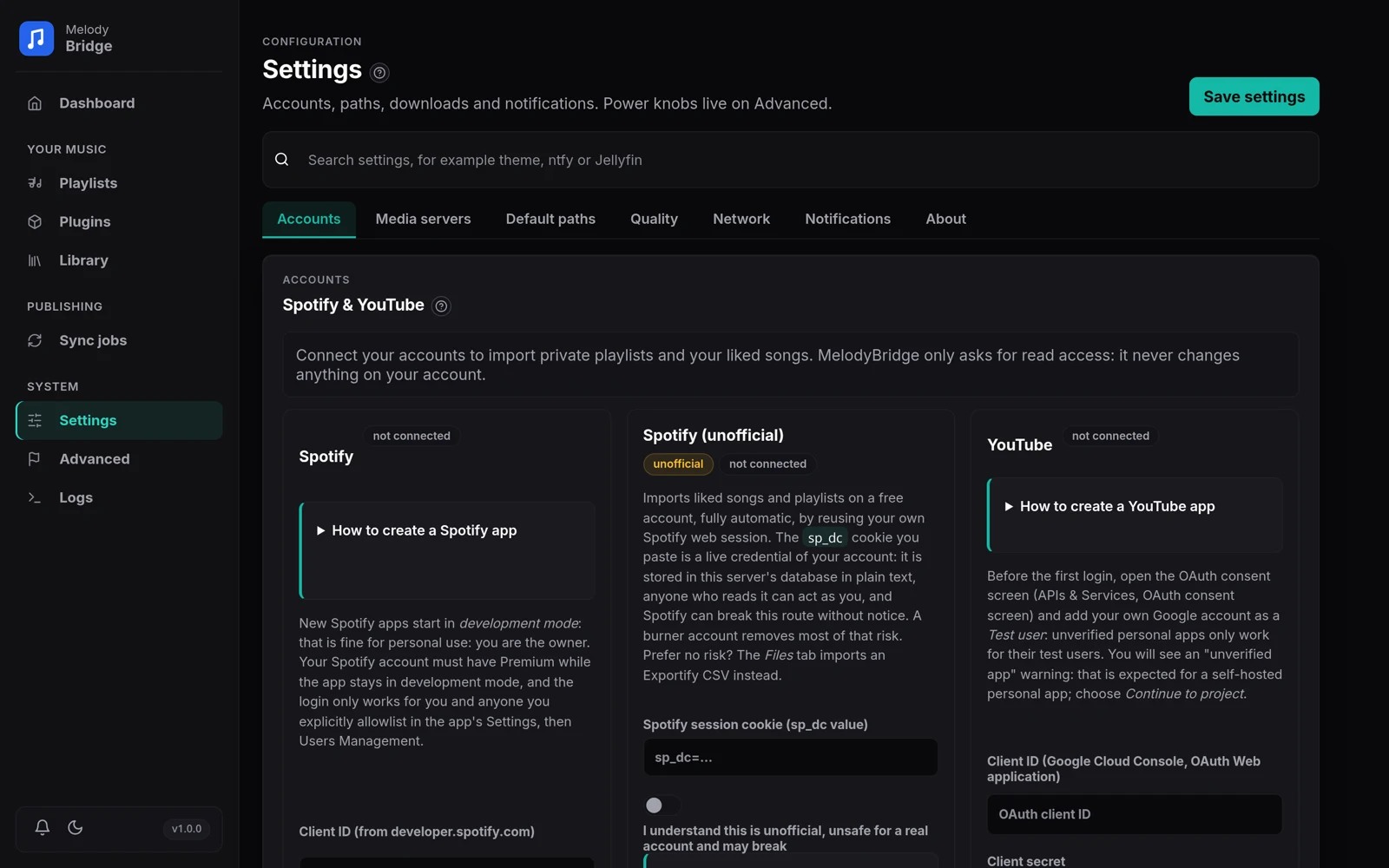
The Settings page has seven tabs. Changes save with the Save settings button and apply immediately, no restart needed. The search box above the tabs jumps to the tab that owns a setting: type theme, ntfy, Jellyfin or a similar word and pick a result. It is a jump list, not a live filter of every field.
Accounts
Connect Spotify and YouTube here. Both logins only ask for read access, so they can never change anything on your account. The third card, Spotify (unofficial), imports on a free account through your own web session: paste the sp_dc cookie, tick the acknowledgement and press Enable and test. The full walkthrough, including the redirect URLs, the cookie route and the file imports, lives in Accounts and imports.
Media servers
Named connection profiles for Jellyfin, Plex and Subsonic (Navidrome, gonic, Airsonic and friends): the server URL plus the credentials each kind needs. Jellyfin and Subsonic take a username and password. Jellyfin signs in and keeps the session token, or you use Quick Connect: the app shows a code, you approve it in Jellyfin, and the sign-in finishes by itself. Plex takes an X-Plex-Token. Every profile has a Test button, and one can be marked Use as app default.
Profiles are what sync jobs pick: the wizard lists the profiles of the chosen kind, and a job stores the profile, not a copy of its credentials. Edit a profile once and every job that uses it follows. The profile marked as app default feeds the app-wide fallback the sync clients use when no profile is picked.
Default paths
- Music path (
/musicin the Docker image): the root for downloads. With Sort downloads into a folder per playlist on, the default, each playlist gets its own folder below it named after the playlist, so one playlist's files never mix with another's. Turn the toggle off and every download lands directly in the music path. Saving a new path moves your existing library along with it. - Playlist output folder (
/app/playlists): where M3U files are written. A new sync job starts with<folder>/<job name>.m3u; type a different path in the wizard when a job should land elsewhere. - Archive path and Archive format: the defaults for archive copies. Leave the path empty for no archive. Per-playlist values override these, and the playlist page shows what the app default currently is. Each playlist gets its own folder under the archive path while the sort toggle is on. Saving a new archive path moves the existing archive copies along with it.
The path fields show a grey {playlist} suffix when the folder rule appends a playlist name, so what a field resolves to is visible before you save.
Remember that these are paths inside the container, not on your host. The page shows a reminder next to the fields. Changing a path moves the tracked files, the playlist folders and the scan locations; a file whose destination is already taken stays where it is and keeps its row, so nothing is overwritten.
Quality
Default audio quality is what every new playlist starts with, whichever route created it: the add form, an account import, liked songs or a file import. Each playlist can override it on its own page.
| Preset | What it accepts |
|---|---|
| Space Saver | Any format up to 160 kbps. Small files, made for huge playlists |
| High Quality | Any lossy format up to 320 kbps, no lossless sizes |
| Lossless | FLAC when a source really has it; a non-strict playlist may step down to the best lossy file |
| No filter | Whatever a source gives, junk included |
| Advanced filters | A container (MP3, FLAC, Opus or AAC) plus a bitrate floor and ceiling |
The primary download is never re-encoded, so a strict filter can make a track fail when no source can serve that exact format. The track row says so when it happens.
Real quality check verifies every download after the fact. A file whose length differs from the playlist, or whose bandwidth says the declared bitrate is inflated, is kept and flagged on its track row for a Keep or Retry decision; see the quality review. Three knobs set how strict the checks are:
| Setting | Default | What it decides |
|---|---|---|
| Spectrum check | Fast | Off trusts files, Fast analyzes the first minute, Thorough the whole file (capped at 15 minutes) |
| Spectrum strictness | Balanced | How many bitrate classes (96/128/160/192/256/320) below the declared bitrate the measured bandwidth may sit before a file counts as inflated. Strict flags one class, Lenient three |
| Length tolerance (seconds / percent) | 30 / 10 | The allowed length difference, the larger of the two wins. A file outside the window is flagged for a decision, not deleted |
Broken bytes (a file ffprobe cannot read at all) are still deleted and the track marked failed, and the next run retries it.
Network
- FlareSolverr URL:
auto(the default) looks for the solver container on the Docker network, a URL points at your own solver, andoffdisables Lucida entirely. The Test connection button tells you what it found. More in Lucida and FlareSolverr. - Spotify cookie: optional. This one only helps public playlist scraping when Spotify starts refusing it: paste the
sp_dcvalue from a logged-in browser session and the app sends it along. It is the same cookie value the unofficial account connection asks for, but the two settings are separate: this field never turns on account imports. Both are stored in the database, not in an environment variable.
Notifications
Two ways to hear about events. Toasts pop up in the corner when a playlist download finishes and when a track, sync job or background task fails; both on by default, and failures always reach the log regardless.
A success or info toast fades after a few seconds. A warning or error stays for 12 seconds and can be closed sooner. The bell in the sidebar keeps the last notifications, including the ones whose toast already faded: open it to read them again, follow an action such as Fix plugin, Open playlist, Retry or View logs, or clear the history. The bell badge counts what you have not opened yet.
ntfy push sends the same events to your own ntfy server. Flip Send notifications to ntfy, enter the Topic URL (for example https://ntfy.sh/melodybridge) and, if the topic is protected, an Access token. Then pick what goes out:
- A playlist download run finishes
- A sync job completes
- A sync job fails
- A background task fails: auto-sync, scan, a crashed run
The four switches work independently of the toast toggles: a category can push without popping up, and the other way around. Send test notification sends one message with the values on screen, even with the enable toggle off. Messages include track names, and delivery is best effort, so a dead ntfy server never stalls a download or a scan.
About
App version and Check for updates, a button to replay the guided tour, and the appearance section. Theme offers Light, Dark or Auto: Auto follows your device and switches with it. The accent picker below it colors tabs, buttons and highlights, the guided tour included. Both are stored in this browser only.
Export logs writes the most recent 1000 entries as a text file. The database section exports a zip snapshot; importing one replaces the database, and you restart the app afterwards.
The dashboard
The dashboard is the at-a-glance page: playlists, downloaded tracks, library files and enabled plugins. The connections panel lists Spotify, YouTube, your media servers and FlareSolverr, and the recent errors panel links to the Logs page.
- Plugin logins lists every login problem in the same red style as the Plugins page, with a Fix link straight to that plugin card. It says "No login problems found" when every enabled plugin's stored login looks usable.
- The sidebar download chip appears while a playlist download is running or paused: how many runs, how many tracks are done, and how many failed. Click it to open the live downloads on the Plugins page.
- On a fresh install, the setup checklist includes a Connect a lossless source card. It links to the Qobuz, Deezer and Tidal cards for the three token flows, and to Jumo and Monochrome, which need no account.
The Playlists page
Saved playlists show as cards or compact rows; the switch sits above the list and the choice is remembered. The sort control offers Recently synced, Name A-Z and Most tracks, also remembered for the next visit. Pinned playlists stay above the chosen order.
Needs attention narrows the list to playlists with a failed source sync, a partial snapshot, failed track downloads, or downloaded tracks waiting for a quality or dedup decision. The count on the chip says how many there are, and the cards name the part that needs a look. A playlist with regular pending downloads is not flagged.
Select turns the list into selection mode: tick several playlists, then Refresh, Download missing, Export CSV or Remove. A bulk export of more than one playlist is a single zip with one CSV per playlist, because browsers block a burst of downloads. A bulk remove deletes the playlists and their track lists but leaves the music files on disk. File imports cannot refresh; re-import their file instead.
Each card and row has a ... menu with the same actions for one playlist. Pin to top keeps a playlist above the others until you unpin it. Remove offers the usual choice to delete the downloaded files too. Next to the menu, the Publish button creates sync jobs for several playlists at once with one schedule and one set of targets. See Publishing playlists.
Playlist options
Open a playlist card and the left panel holds everything specific to it:
| Option | Notes |
|---|---|
| Name | Shown everywhere in the app. The playlist's folder is named after it (or after the folder you type) |
| Download folder | Empty means the default music path, with a subfolder named after the playlist. A folder typed here is used as it is |
| Audio quality | One of the presets above, or advanced filters |
| Strict quality | On: only the exact quality is accepted. Off: the download steps down to the best lower quality the enabled plugins declare. See strict quality |
| Allow container changes | Shown when strict is off: whether a fallback step may leave the chosen container |
| Archive copy | The switch turns the second copy on or off for this playlist. When it is off the folder and format fields disappear, and no copy is made, even when the app-wide archive path is set. When it is on, an empty folder means the default archive path plus a folder named after the playlist, and the format select says what the app default currently does |
| Auto-sync schedule | Manual, hourly, daily, weekly, monthly or cron. A refresh that fails is retried at the next interval, not on every check, so a broken source cannot hammer itself |
| Download new tracks after auto-sync | Off by default. After a successful auto-sync refresh, a download run starts when there is pending work; failed tracks are retried every interval. Hidden for file imports |
| Sync mode | Additive keeps removed tracks as history, Mirror matches the source |
There is no Save button. Text fields save half a second after you stop typing, dropdowns save right away, and a small pill narrates the state: Saving…, Saved, or Failed to save. A failed save rolls the fields back to what the database actually has.
Playlists imported from a file are snapshots: the header says so, and updating them means re-importing the file.
The track list
Each track row shows its state and, once downloaded, the real quality: bitrate, sample rate, format and file size. Every column header sorts the list; click it again to reverse the order. Next to the status pill sits a small archive check: a green check when this track's archive copy is on disk, a quiet dash when the track has no copy yet, and a warning when the recorded copy has vanished. With no archive path configured for the playlist the check stays away. Click the check to open the archive dialog: it shows the copy's state, repeats any archive failure in full, and offers Create archive copy or Recreate archive copy, which rebuilds the file from the current download. A failed rebuild leaves the previous copy in place and keeps it on the row, so deleting the playlist files still removes it. The ! pill beside the status opens the same dialog, so a failed copy is one click from being repaired. Enable Show the file column on playlist tracks on the Advanced page to see the file names, including archive: <name> chips for archive copies.
- The filter box narrows the list; Needs attention shows only failed tracks and tracks waiting for a dedup or quality decision.
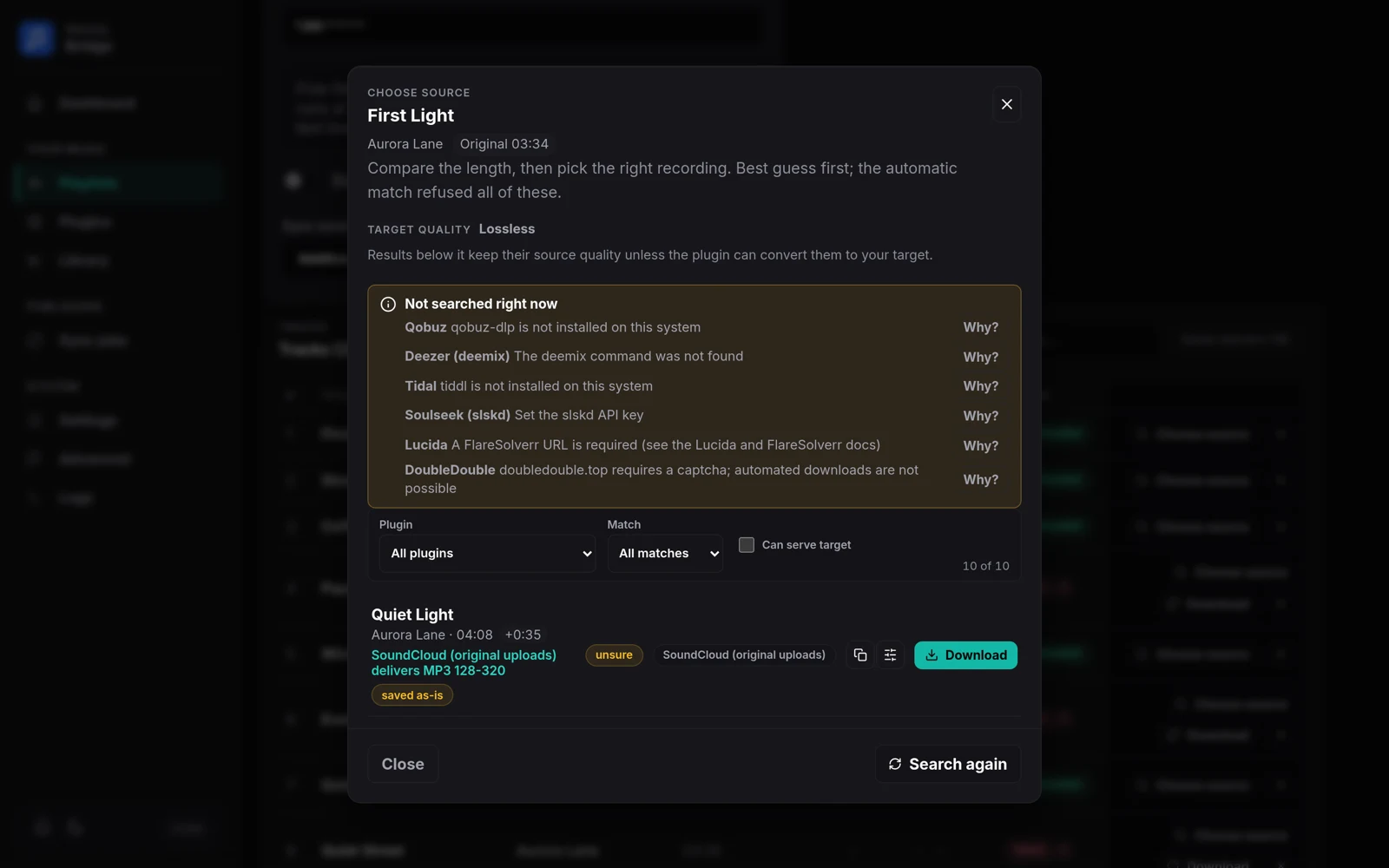
- Choose source opens the manual picker: every enabled plugin's search results for that track, best guess first, each with the plugin name and a likely/unsure pill. The track's own length sits at the top and every hit shows its length and the difference, so a preview or a longer edit stands out before the click. Every hit also carries its quality: a catalog that knows the track's ceiling reports the lower of that ceiling and your configured tier (Qobuz), the yt-dlp-backed plugins probe the selected stream before anything downloads (codec, bitrate, sample rate), and for the rest the row names what the plugin declares it can deliver. A pill compares that with the playlist's target: matches target, saved as-is when the plugin cannot deliver the target and the pick keeps its source quality, outside target when a source sits above a cap and keeps its quality, or off target when the plugin will convert the pick to the requested container. A band is only called a match when the probe measured it. Plugins search at the same time and results appear as they arrive; the pick itself shows a progress bar and a running timer. Use it when the automatic match picked the wrong recording or found nothing; the pick downloads through the normal pipeline and replaces an existing file. A source that fails stays in the list with the reason, ready for another pick. The automatic search refuses results it cannot vouch for, so a wrong song is a miss you repair here instead of a silent download. The picker filters by plugin, match confidence and can serve target, and each row can copy its source URL or open that plugin's settings. The filters and scroll position are remembered when you close and reopen it. An empty result list names the plugins that could not be searched, with the reason (down, timed out, search failed or login needed), and links straight to their cards, so a short list never looks like a silent failure.
- A flagged track row (wrong length or inflated bitrate) shows a ! pill and two buttons: Keep accepts the file as it is, Retry downloads it again while skipping the provider that delivered the flagged file. The file stays in the library until you decide. See the quality review.
- Remove opens three choices for a downloaded track: remove it from the playlist but keep the file, delete the file and its archive copy but keep the track (it goes back to pending for a later download, handy after a wrong match), or delete the file and remove the track. Tracks without a file leave right away.
- Export CSV downloads the whole track list as a spreadsheet.
- Refresh fetches the playlist again and applies the sync mode.
- Download missing starts a download run. While one is live, the button is replaced by Pause, Resume and Cancel.
- When tracks are failed, Retry failed (N) retries all of them in the normal waterfall order and Retry elsewhere also leaves out the plugin that failed each track last time. A progress card shows the batch; the final toast says how many downloaded and what still needs attention: failed, waiting for a review, already downloading in another run, or no longer there. A failed-download toast can link back with Retry and start that one track again.
- Remove playlist removes the playlist, with an option to delete the downloaded files too.
The Plugins page
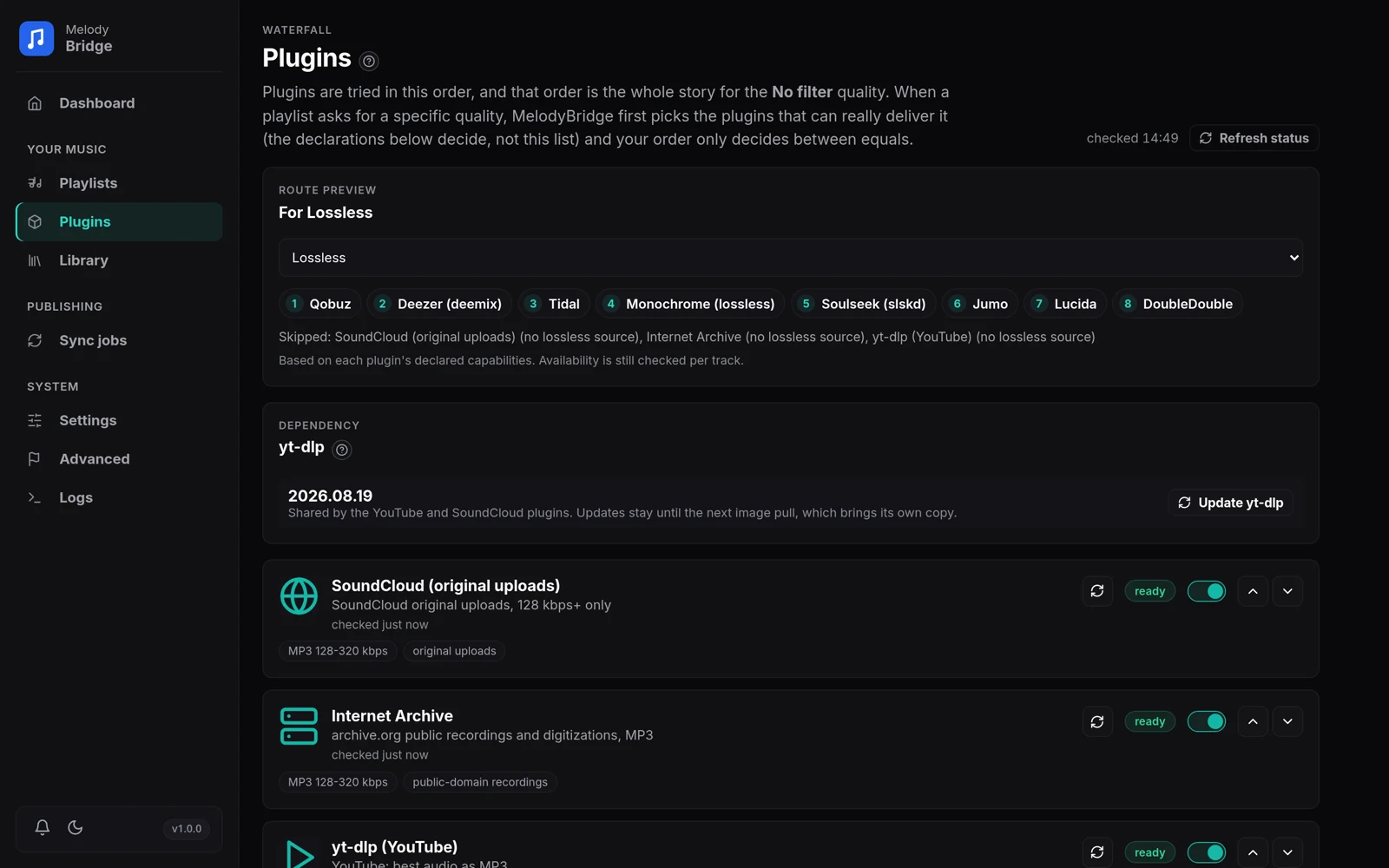
Plugins search for and download your tracks. The order set here is the whole story for the No filter quality. When a playlist asks for a specific quality, MelodyBridge first picks the plugins that can really deliver it (their declared capabilities decide) and the order here only breaks ties between plugins of the same kind. Use the arrows to move a plugin and the switch to enable or disable it.
The Route preview card answers "what will actually run?" before a download. Pick a quality preset and it shows the enabled plugins in try order, with the ones left out and the reason they were left out ("no lossless source", "cannot produce FLAC"). It is a declaration preview: availability is still probed per track.
- Each plugin card shows its capability badges (formats, bitrate range) and a Settings row when it has options. The row opens a panel with the fields that matter (a token, an API key, a quality) and hides the rarely touched knobs (commands, custom folders) behind Advanced. Secret fields render as password inputs with a reveal button, and values are remembered per plugin.
- A working login shows what it actually gives you: the Qobuz account and configured tier ("Studio, hi-res up to 96 kHz"), the Deezer plan ("No lossless plan"), or the Tidal country, tier and expiry. The card also says when it was last checked, and its refresh button tests only that plugin. Plugins that have a docs page carry a Setup guide link.
- An unavailable plugin (missing binary, dead service) is skipped by the waterfall. The card says what is missing, in one line, and Refresh status re-checks everything.
- A saved login that stopped working gets a red mark: a red exclamation on the plugin icon, a red card border, and a status pill naming the problem (token expired, token rejected, account blocked, plan restricted). A banner at the top of the page lists every affected plugin with an Open settings button, the Plugins link in the sidebar carries the same mark, and a toast names the plugin when the problem is found. A login that was never set up is not a red alert: the card only says what to add. Dismiss hides the banner until a login problem appears or changes, and the mark on the card stays.
- A failing card has Copy diagnostics: version, plugin id, enabled state, login state, last reason, declared capabilities and the settings with secrets masked. Paste it into a bug report.
- Save settings tests the new token or ARL immediately instead of reusing the previous "unavailable" answer. Status probes run in parallel, so one slow provider does not hold up the rest; each card shows a checking state while its probe runs.
- Live downloads shows each running playlist with its progress and the track it is on, plus Pause, Resume and Cancel buttons. Several tracks of a playlist download in parallel; the limit is set on the Advanced page. Every track is attempted once per run, so one broken track cannot stall the rest.
The Library page
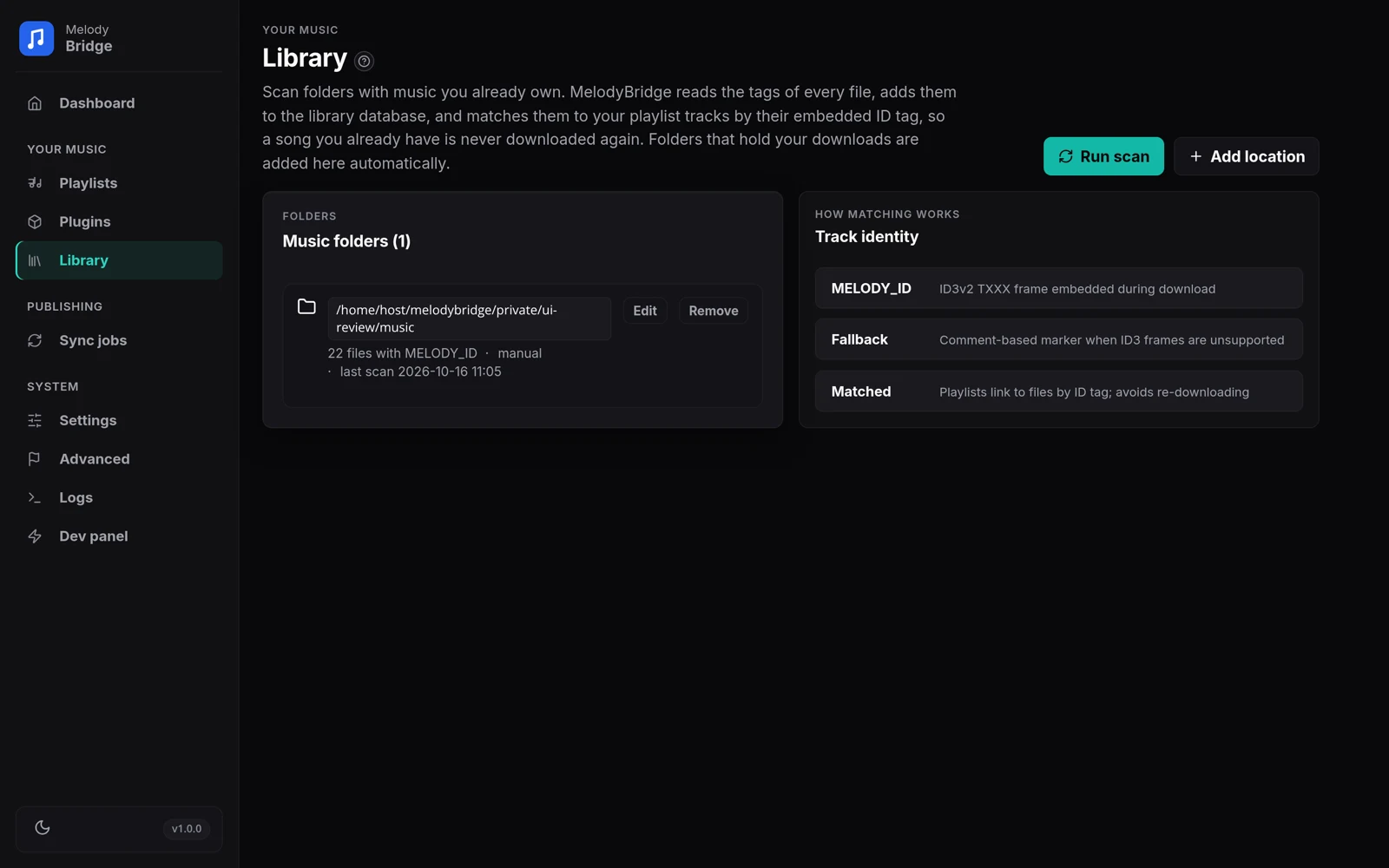
The Library page covers music you already own. Add location points MelodyBridge at a folder; new playlists register their download folder here automatically.
- Each location has its own schedule (manual, hourly, daily, weekly, monthly or cron) and an optional Live monitoring toggle that rescans when files change. Run scan does all folders immediately.
- The scanner reads tags, not filenames, and matches files to playlist tracks by their
MELODY_IDtag, so a song you already have is never downloaded again. Location cards show how many files with aMELODY_IDthey hold, the schedule, the last scan, and a path missing pill when the folder went away. A folder that sits in a configured archive path is marked archive folder: its files are copies and are never adopted as a track's main file. - The Track identity panel on the right repeats the short version of how matching works. The long version is in How it works.
The Advanced page Advanced
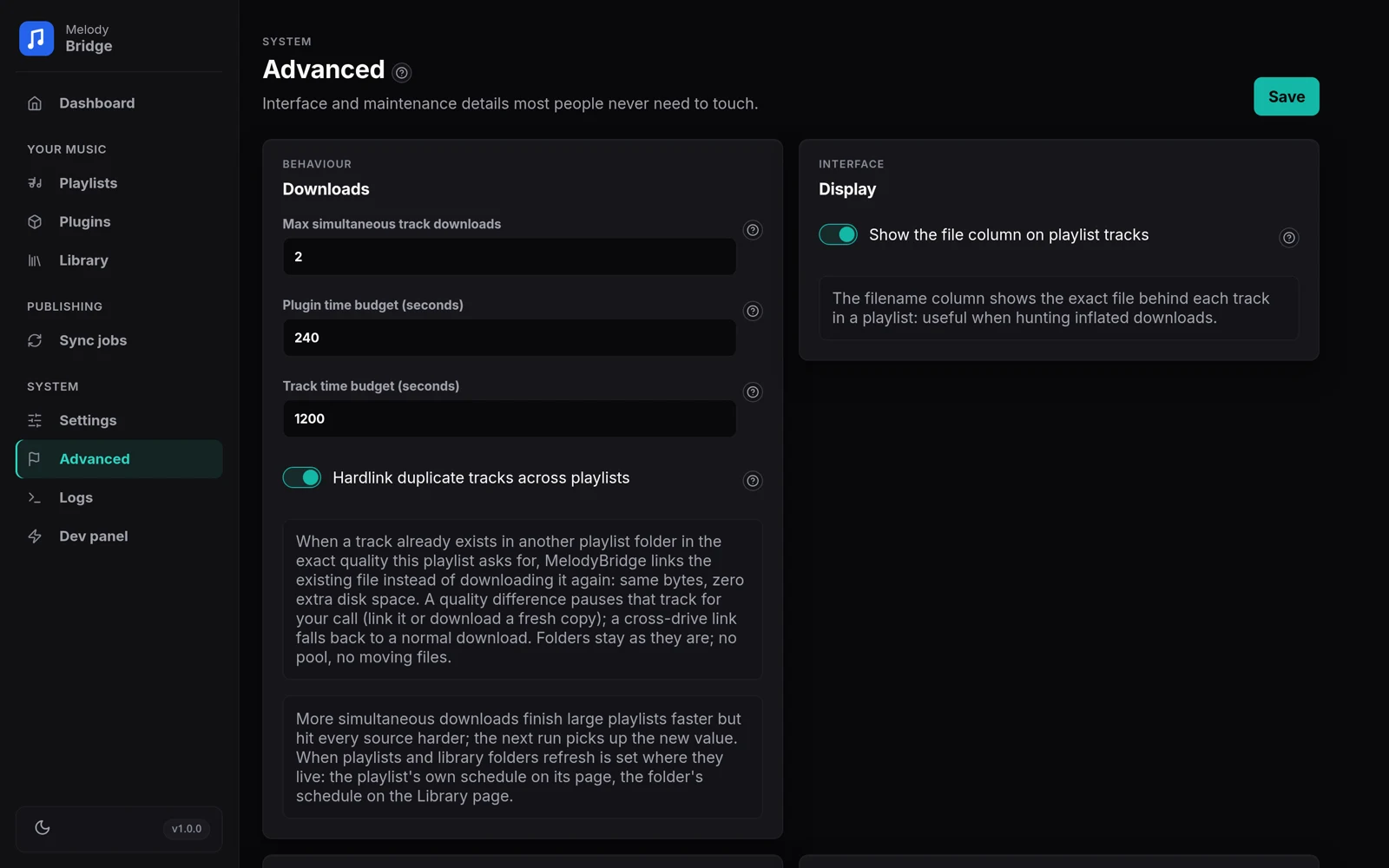
The knobs most people never need, in four panels:
- Downloads: Max simultaneous track downloads (1 to 8, default 2; the next run picks up a change), Plugin time budget and Track time budget (in seconds: how long one plugin and one whole track may take before the waterfall moves on or gives up) and Hardlink duplicate tracks across playlists, the dedup toggle described in How it works.
- Display: Show the file column on playlist tracks, which reveals the exact filename behind every track. Handy when hunting inflated downloads.
- Logging: Show database activity in the logs. Off by default, because EF Core writes a line for every SQL command. Warnings and errors show up either way. Applies immediately.
- Maintenance: Recompute audio facts reads bitrate, sample rate and size straight from the files on disk, for downloads that predate the probing, and re-runs the spectrum check on what it reads, so an inflated file or a lossy source boxed as FLAC is flagged after the fact. Tracks whose file has vanished are queued for a re-download. A spectrum review you already settled with Keep stays settled; the check does not reopen it for the same file. Re-tag library fills what a downloaded file is missing: cover art from the source, lyrics, the release credit and the album name. Only missing fields are written, so artwork a plugin embedded is left alone. It reports how many files changed, how many were already complete and how many could not be read.
The Logs page
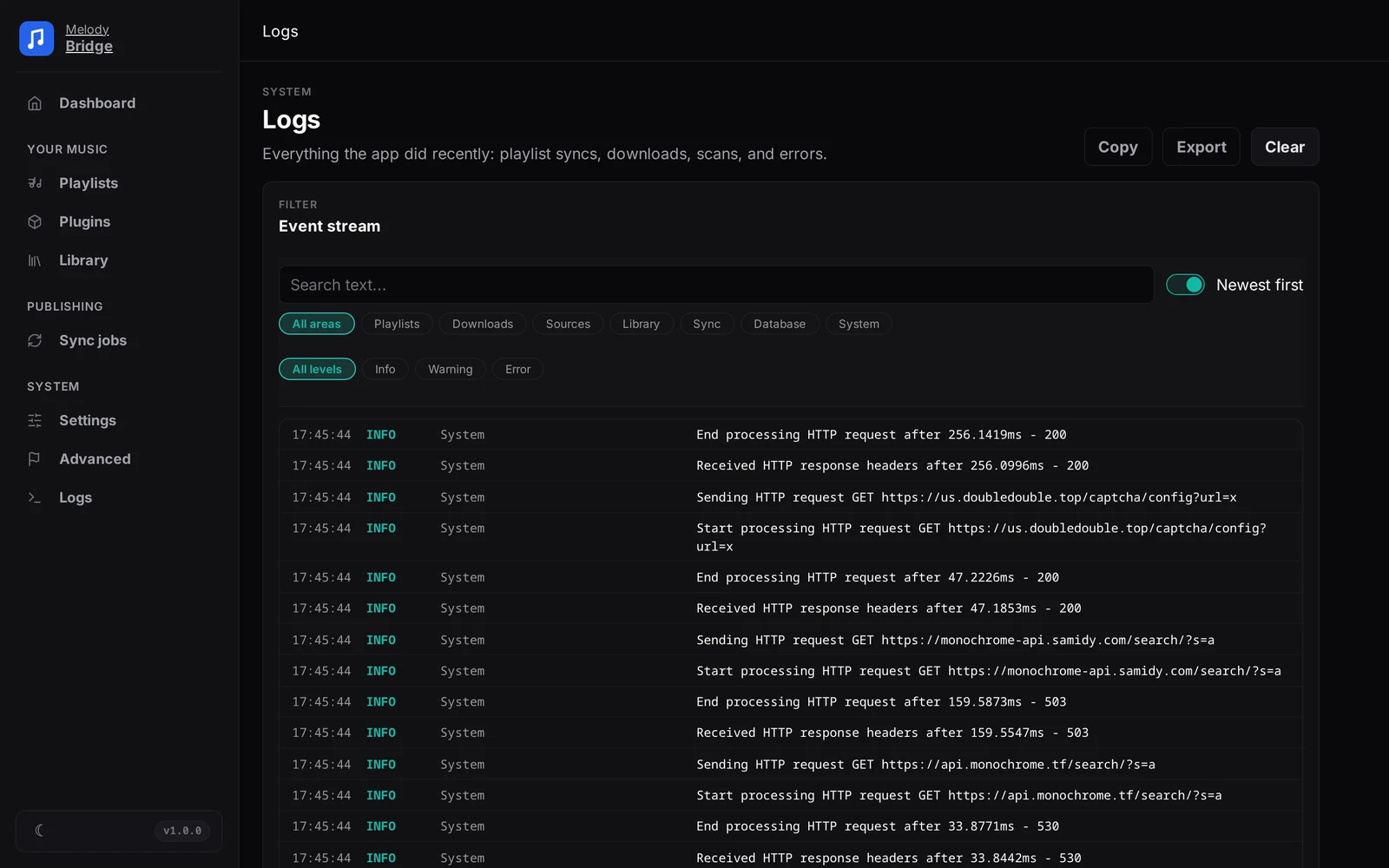
The event stream shows playlist syncs, downloads, scans and errors. When there are errors, a banner at the top lists them; click one to jump to that area.
- Filter by area (Playlists, Downloads, Sources, Library, Sync, Database, System), level (Info+, Warning, Error, Debug) or source (Qobuz, Tidal, Deezer, yt-dlp, SoundCloud, Monochrome, Jumo, Lucida, Archive.org, Soulseek, DoubleDouble, Waterfall, Other). Every area chip shows how many entries it holds, and the source list shows its counts too. The search box also matches the friendly area names.
- The page opens on Info+, so debug and trace noise stays out until you ask for it. Framework chatter from ASP.NET, the host and
System.*loggers is kept out as well; their warnings and errors still appear. - Pause live stops the two-second refresh so the stream stays still while you read it; resuming catches up at once. Group by track puts one download attempt's search, skip reasons, download and verification under the same track header.
- Each row has Copy and Pin. A pinned entry moves to the pinned card above the stream and stays there while it updates; Clear empties the pinned list. Show only problems narrows everything down to errors. Copy puts the filtered entries on your clipboard, Export writes them to a file, and Clear empties the buffer.
- The filters, search text, order and grouping are remembered when you leave the page and come back. A restart starts clean.
When a download fails
The error on a track row is the reason the waterfall gave up:
| Message | What to try |
|---|---|
| your quality filters excluded every plugin | No enabled plugin can serve that format or band. Loosen the filter or enable more plugins |
| sources had N file(s) outside your quality filters | Candidates existed, but none inside your band. Move the floor or ceiling |
| sources only returned files in another format | The filter asks for one container and the sources serve others |
| sources only had versions with the wrong length | Nothing matched the expected duration, likely a different edit of the track |
| sources returned files that are not audio | The plugin got junk; it was deleted. Retry, the waterfall may pick another source next run |
| no source had this track | Nothing matched at all. Check the spelling in the source playlist |
| Qobuz: Qobuz blocked this account (USER_BLOCKED) | The token is valid, but Qobuz refuses downloads for this account. Use another account or ask Qobuz support |
| Tidal: The Tidal token expired / Tidal rejected the session | Paste a fresh token on the Plugins page, or run tiddl auth login |
| Deezer: The Deezer ARL is no longer signed in | Copy a fresh arl cookie from deezer.com and paste it on the Plugins page |
| no other provider is available: X delivered the flagged file and was skipped | You chose Retry and X was the only enabled plugin left, so there was nothing else to try. Enable another plugin; a later Download attempt may use X again |
| corrupt download: ffprobe failed | The file could not be read at all, so it was deleted and the track marked failed; the next run retries |
| archive copy failed: ffmpeg not found on this host | The download itself is fine; install ffmpeg if you want archive copies |
A needs review state is not a failure either: it means two playlists disagree about a track's quality and you get to pick, see How it works.
One more place to look: the Connections panel on the dashboard shows the state of Spotify, YouTube, your media servers and FlareSolverr at a glance.