
Publishing playlists
A sync job turns a saved playlist into something your players can use: an M3U file, a real playlist inside Jellyfin, Plex or a Subsonic server, or several of those at once. One job can write the M3U and push the same playlist to Jellyfin and Plex in a single run. Jobs run by hand or on a schedule, so your "New releases" playlist can show up on the media server without you touching anything.
Publish playlists in a few clicks
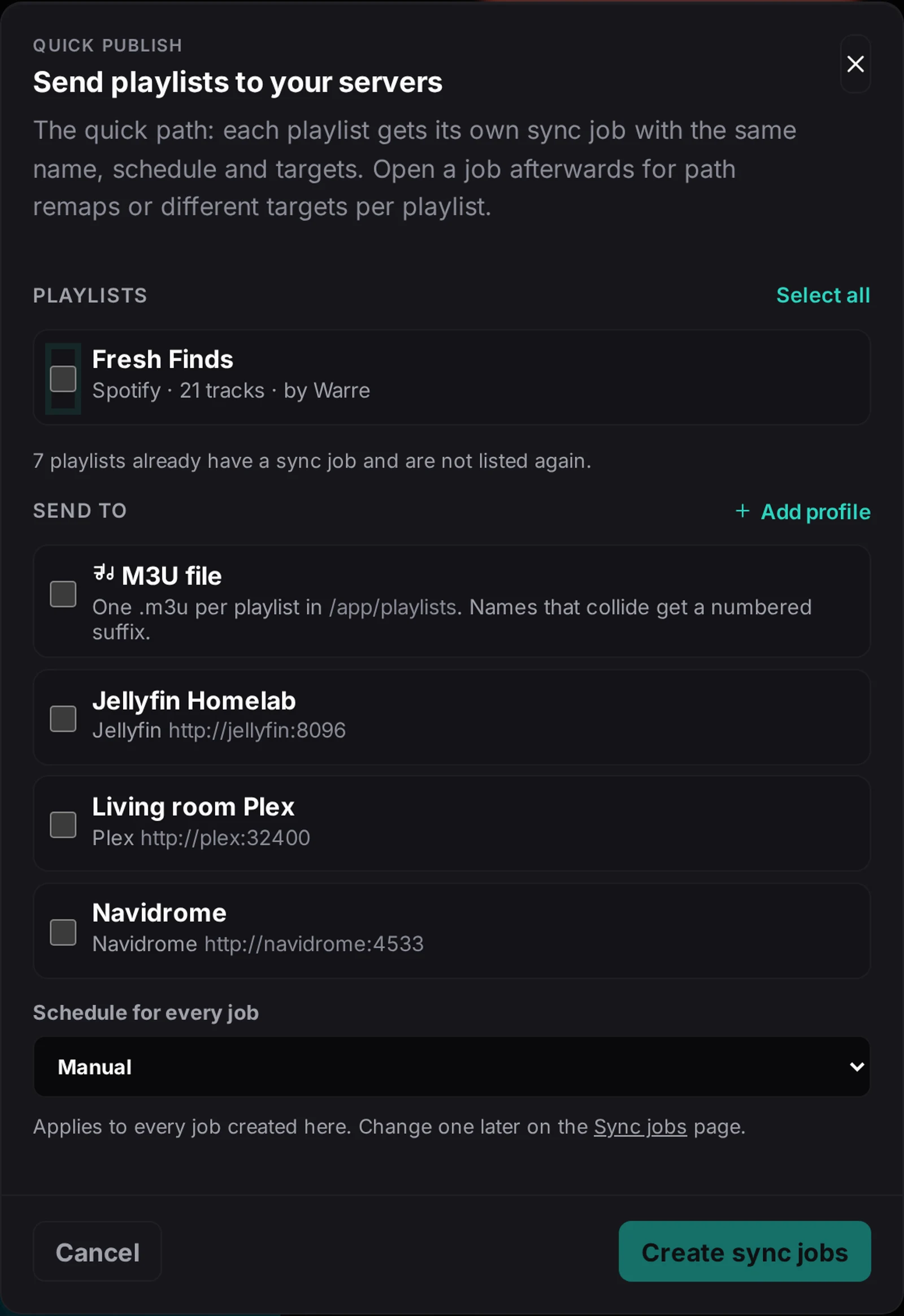
The Publish button on the Playlists page is the short path. Tick the playlists, choose where they go, and pick one schedule. Every ticked playlist becomes its own job, named after the playlist, with the targets and schedule you chose. Send to can be an M3U file, any number of media server profiles, or both. The M3U files land in the Playlist output folder setting, one per playlist. Names that sanitize to the same file get a numbered suffix, so one job never overwrites another's file. Add profile opens Settings, Media servers, when you need another target first.
Playlists that already have a job are left out of the list, so the same playlist is not offered twice; creating the jobs re-reads the list, and anything deleted in the meantime is named in the result instead of becoming a dangling target.
The quick path still skips path remaps and the per-job Jellyfin user. Open a created job with Edit on the Sync jobs page for those.
Create a sync job
New sync job opens a five-step wizard.
Step 1: Pick your playlist
Give the job a name and choose the source:
- Saved playlist publishes a playlist from the Playlists page.
- Local folder publishes one scan folder from the Library page, for music that did not come from a playlist at all.
Step 2: Where your music lives
A checkbox list of your scan folders, all checked by default. Leave them all checked to search every folder for matching files.
Step 3: Choose the targets
Tick everything the job should publish to; at least one target is required.
| Target | What it needs |
|---|---|
| M3U file | An output path inside the container. It starts from the Playlist output folder setting plus the job name; type a different path when this job should land elsewhere |
| Jellyfin | A Jellyfin profile from Settings, Media servers. Test connection checks it and lets you pick the user; that user applies to every Jellyfin target of the job |
| Plex | A Plex profile. The token holder is the only account there is, so there is no user picker |
| Subsonic | A Subsonic or Navidrome profile. Navidrome, gonic, Airsonic, Ampache, Funkwhale and Nextcloud Music all speak this API; there are no API keys |
The job stores the profiles you tick, not a copy of their credentials: edit a profile once and every job that uses it follows. If a profile is deleted, the next edit drops that target and asks for a replacement while the job's other targets stay. No profile yet? The wizard links straight to the media servers tab, where you create one (Jellyfin sign-in and Quick Connect included), then reload the list here. A job created before profiles existed keeps the connection it carries as a target you can keep or replace.
The job card names every target, and the run summary counts them: a run that reaches three targets says so, and one refused target fails the run with its own message while the others still publish.
Step 4: Optional: fix file paths
Add path or extension remap rules when your player sees files under a different path than MelodyBridge. This is common in Docker, where the same folder is mounted at different paths in different containers. A path rule maps a prefix (/mnt/BackupHDD/Music to /media/music), and an extension rule rewrites file extensions (.flac to .opus). Leave both empty when the paths already line up.
Step 5: Check and create
Review the summary and press Create sync job. Later, Edit on the job card reopens the same wizard with the current values.
Schedules
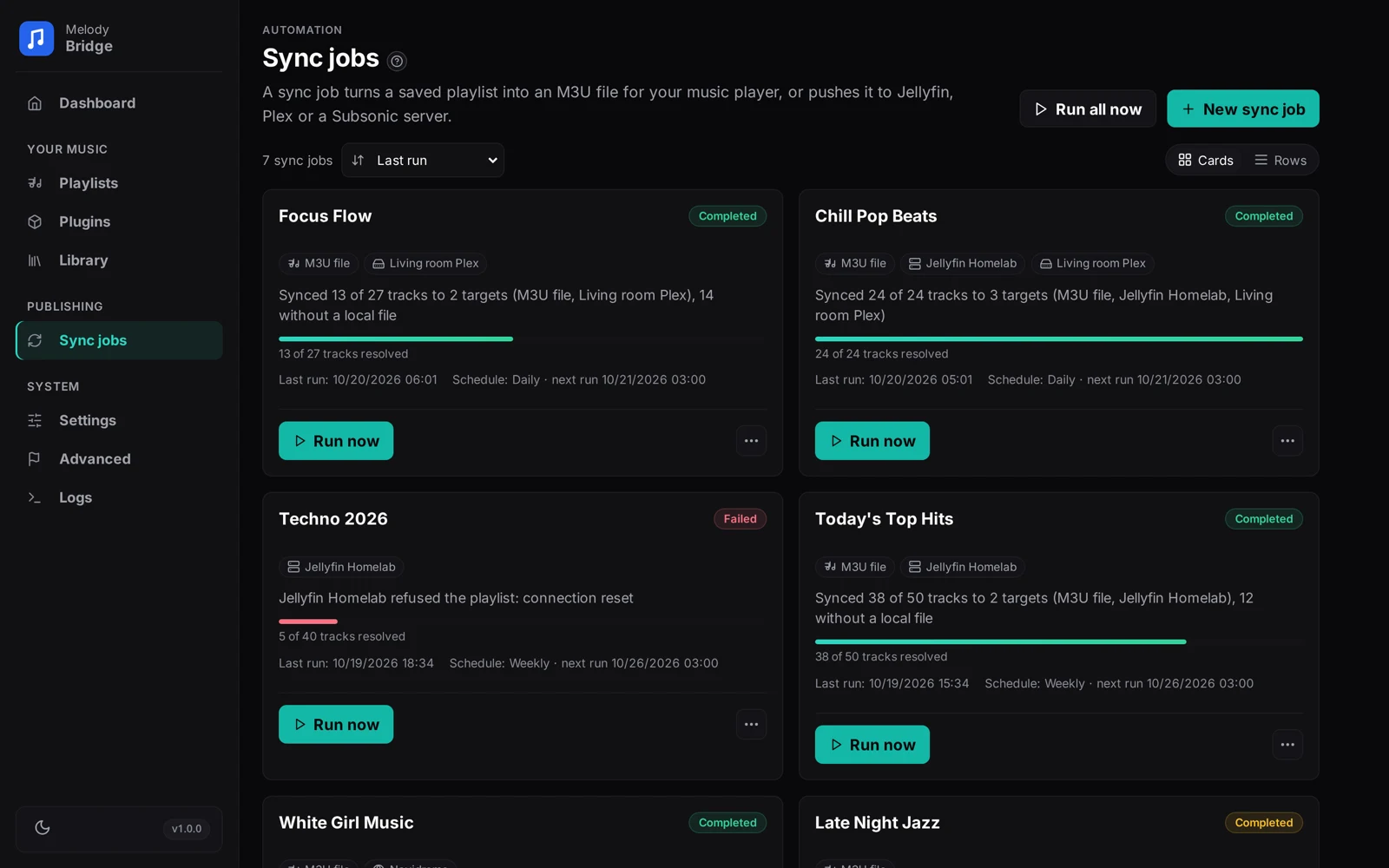
Manually created jobs run from the Run now button. Run all now at the top of the page runs every job once, one after the other, and says how many finished. A job that has a schedule runs on its own while MelodyBridge is running: the app checks once a minute and runs every due job, one after another.
A new job first runs at its next scheduled time, not the moment you save it. Pick Daily and the first run is the next 03:00; the card says when that is (next run ..., or due now when a missed window is about to catch up). Press Run now to start it earlier. A job that was created while the app was off catches up on the next check.
Pick Manual, Hourly, Daily, Weekly, Monthly, or Cron for something custom. Cron uses five fields (minute, hour, day of month, month, day of week):
0 * * * *every hour on the hour0 3 * * *every night at 03:000 3 * * 1Mondays at 03:0030 4 1 * *the first of the month, 04:30
There is no separate daemon: jobs, playlist auto-sync and library scans all run only while the app process is up.
Reading a run
The job card shows the last status and a one-line summary. That summary counts the whole playlist:
Reading "Synced 20/50 tracks, 30 without a local file"
The playlist has 50 tracks, and 20 of them had a file on disk to publish. The other 30 have no local file yet, usually because they were never downloaded. Log breaks the run down per track, so you can see which ones are missing.
Run now triggers a job immediately. The ... menu opens Log with the last 20 runs and per-track detail, Edit for the wizard, and Delete, which removes the job and its run history without touching playlists or music files.
Many jobs in one list? The Cards / Rows switch above the list changes the layout; the choice sticks. Rows fit more jobs on screen, cards have room for the last run summary and its progress. The sort control orders jobs by Last run, Next run or Status. Next run puts due and upcoming jobs first and manual jobs last; status puts failures and never-run jobs first, so the jobs that need a look stay at the top.
Liked songs become favorites
Tracks that came in through Import liked songs are flagged, and every sync job marks them as favorites on the target: per user in Jellyfin, a top rating on the Plex token-holder's account, and a star on the Subsonic side. See Accounts and imports for the import side.