
Quick start
MelodyBridge runs in Docker. You need Docker or Podman, nothing else.
mkdir melodybridge && cd melodybridge
wget https://melodybridge.app/compose.yml
docker compose up -dmkdir melodybridge && cd melodybridge
wget https://melodybridge.app/compose.yml
podman compose up -dThat starts two containers on one internal network: MelodyBridge on http://localhost:3333, and FlareSolverr, the Cloudflare solver that the Lucida plugin needs. The port binds to 127.0.0.1, so the app is not reachable from other machines until you put a reverse proxy in front of it.
The first start creates a ./data folder next to the compose file:
./data/musicfor downloads./data/playlistsfor M3U output./data/appfor the SQLite database
Point Jellyfin, Plex or Navidrome at ./data/music and they will see everything MelodyBridge downloads.
Your first download
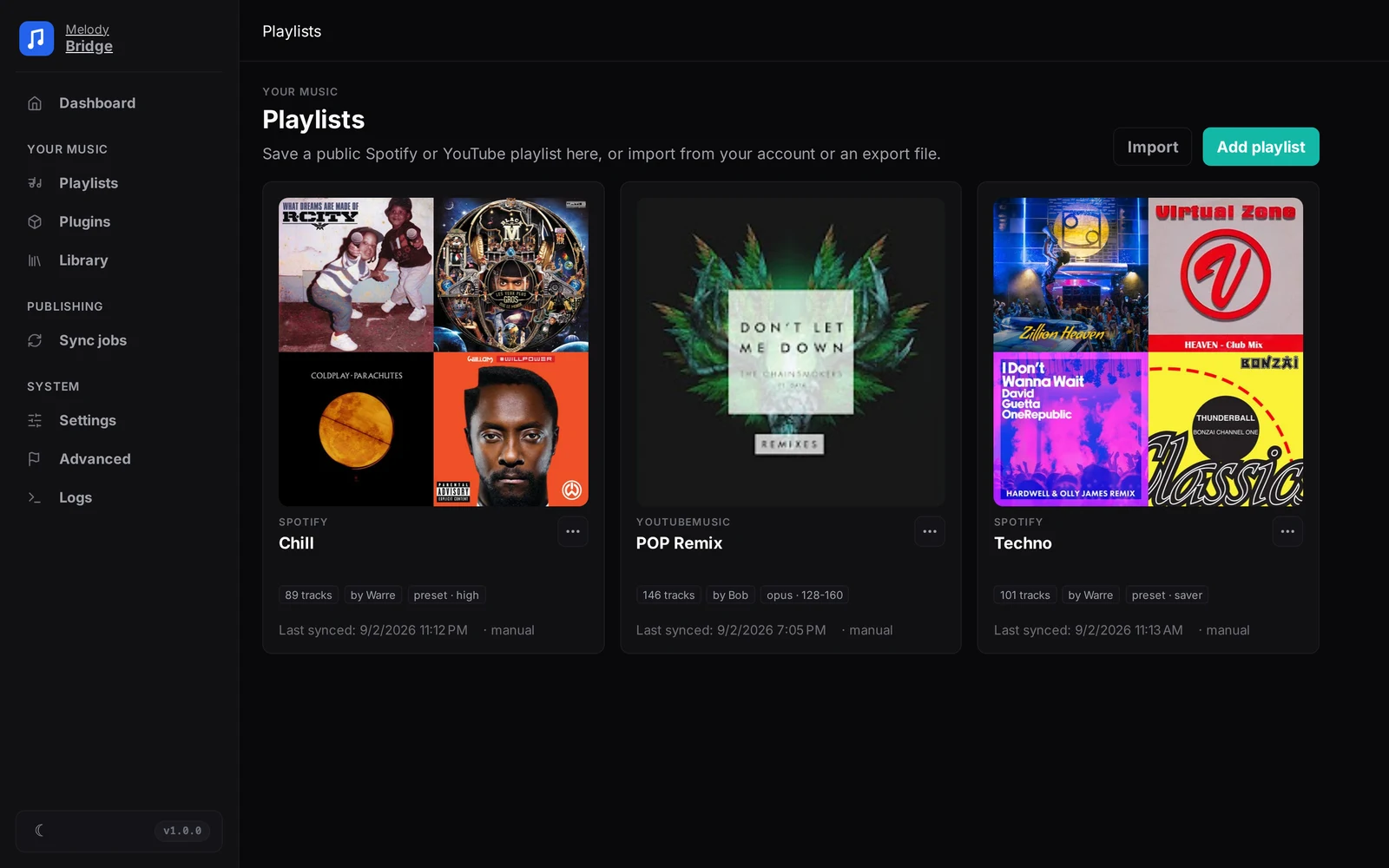
Open Playlists and paste a public Spotify, YouTube, Deezer, SoundCloud or ListenBrainz playlist link. Press Fetch & save; MelodyBridge stores the track list in its local database.
Open the playlist and press Download missing. The plugins search and download each track, and the list fills in with the real quality of every file.
Create a sync job that writes an M3U file or pushes the playlist to Jellyfin, Plex or a Subsonic server. More about that in Publishing playlists.
One song at a time
Need a single track rather than a playlist? Open Downloads and press Download a song. Search by artist and title and pick the exact recording in the source picker, or paste a YouTube, SoundCloud or Bandcamp link. The file lands in your music folder with the same tags and MELODY_ID as a playlist download, and the scanner adds it to your library on its next run.
Paths inside the container
MelodyBridge only sees the container side of your volumes, so every path you type in the app is a container path: the music folder is /music, not C:\Music or /home/you/Music. If your media server runs on the same machine as Docker, use http://host.docker.internal:8096 (Jellyfin), :32400 (Plex) or :4533 (Navidrome) as its server URL.
What next
- Docker deployment for the beta channel, the dev setup, a manual build and what every volume and environment variable does.
- How it works for the download waterfall, the quality checks and how your library survives a database wipe.
- Publishing playlists for the sync job editor, rule profiles and schedules.
- Accounts and imports when you want private playlists or liked songs, not just public links.